Key Takeaways
- Clay data enrichment fills in missing fields on your rows, such as work emails, phone numbers and company facts. A waterfall asks several providers in order and stops for that row once one returns a valid answer.
- Test every new waterfall on 10 rows first, then 50, then 500 if your list runs that long. Clay’s own credit guides give that order, and it shows your real cost per valid email before you spend at scale.
- A lookup that finds nothing is refunded for the email finders on Clay’s refund list, but a wrong email and an “invalid” verdict are charged. Gate each step with a run condition so it only fires when the field is still empty.
- Clay’s HubSpot and Salesforce guides document no “only fill empty fields” switch. You build that rule yourself: look up the record, check the field, then write.
Clay data enrichment is how Clay fills the gaps in a lead list. You start with a company domain or a name, and Clay asks data providers for the email, phone number or company detail you’re missing. Finding data is the easy part. The decisions are which provider to ask first, when to stop, what counts as a valid answer and which CRM fields Clay may touch.
This guide comes from Frontal, the go-to-market partner for B2B tech companies. We work as an extension of your team and build this kind of enrichment in Clay for our clients. We’re also a Clay Elite Studio Partner.
Every Clay detail here follows Clay’s documentation as of November 16, 2026. You’ll set up one work email waterfall, validate what it finds and price each lookup. Then you’ll write the results into HubSpot or Salesforce without overwriting a person’s work, and keep the data fresh.
What Clay Data Enrichment Is
Clay’s help center defines enrichments as tools that “transform your data by pulling in additional information from various sources.” In practice, an enrichment is a column. You click Add enrichment in a table, search for the data point you want, pick a provider and map the inputs. Each row then sends those inputs to the provider and gets an answer back in that column.
Clay sells access to more than 150 data providers through its marketplace, according to its pricing page. That range is why teams use Clay lead enrichment instead of one database: you can ask a second or third provider only for the rows the first one missed.
That’s also where Clay differs from the vendors in a list of lead enrichment services. Those vendors sell their own data. Clay is the place where you combine theirs. One naming trap: “Clay Enrichments” is also the name of one specific provider inside Clay, so it doesn’t mean every enrichment you run.
How Clay Waterfall Enrichment Works
Clay waterfall enrichment chains several providers for one data point. Clay’s waterfall guide describes waterfalls as several data providers run “in a predetermined sequence, so you don’t duplicate tasks or spend extra credits.” Provider one runs first. Provider two runs only on the rows provider one couldn’t fill, and so on down the list.
The stop rule is what makes it cheap. Clay’s waterfall lesson puts it plainly: “If one provider returns a valid data point, Clay stops further enrichments, saving you credits.” For a work email, “valid” means the address also passed the validation step. If it fails, the waterfall moves on to the next provider.
So every row ends at one of three stop points. A run condition can keep the waterfall from starting at all. Otherwise, a provider returns an email that passes validation, or every provider has been tried and nothing valid came back. The run condition is the only stop that costs nothing, because a row that already has a verified email never enters the waterfall.
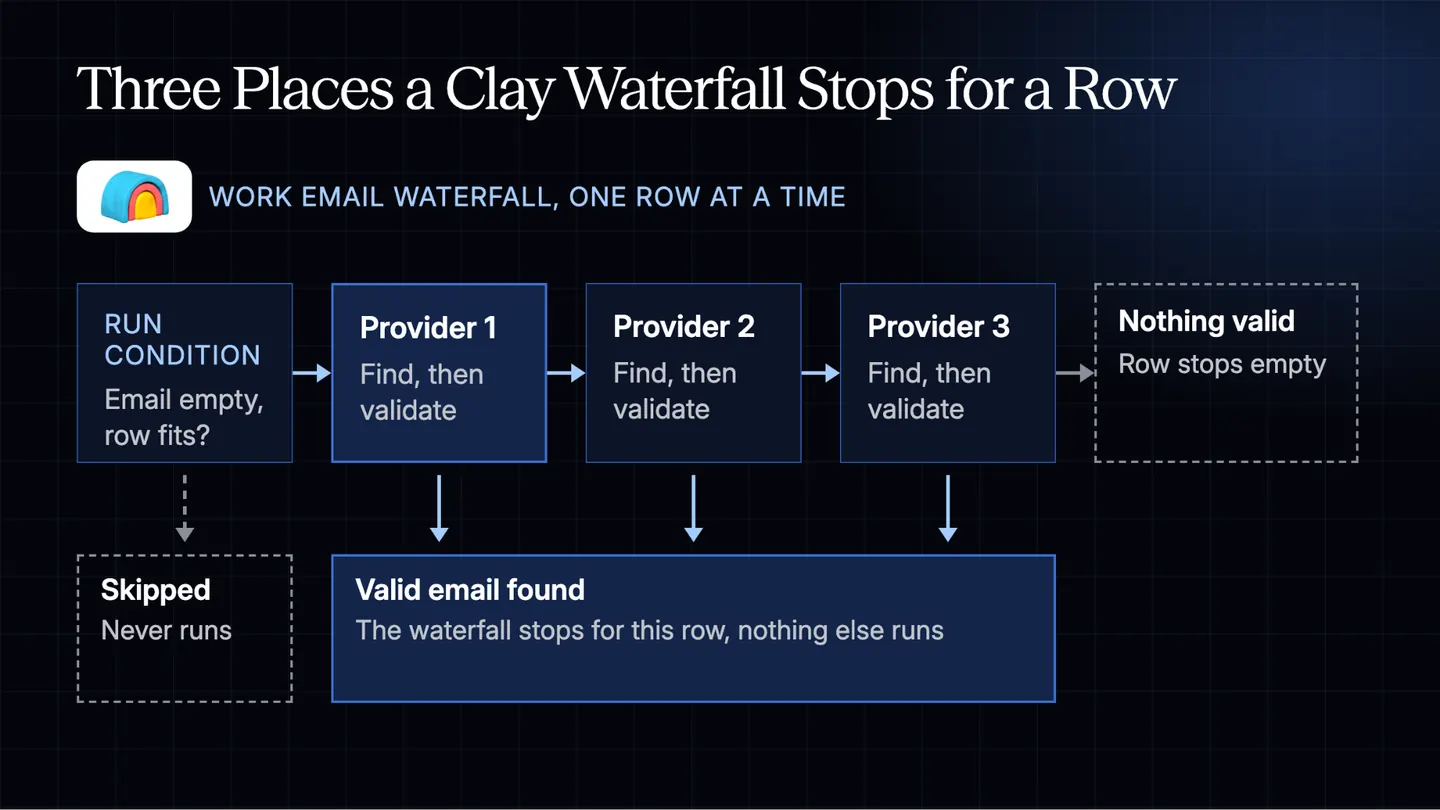
A run condition is the cheapest stop a row can reach.
Clay’s pre-built waterfalls cover work emails and phone numbers, and you can build your own for other data types. A waterfall is one column, so it runs row by row like every other column in Clay tables.
Before You Build: Inputs and a Qualified List
A waterfall is only as good as what you feed it. Clay’s work email lesson says “the primary input required is the Company Domain,” ideally with each person’s LinkedIn URL as well. Without those, it suggests fallback pairs: full name plus company name, or full name plus personal email.
Get the company right first, because a wrong domain sends every provider down the same wrong path. A list with clean domains and LinkedIn URLs gives each provider the best chance on the first try, which means fewer providers run per row.
Qualify the rows before you enrich the people in them. Clay’s credit conservation guide recommends you “qualify leads before enriching,” so only rows that fit your ideal customer profile reach a paid step.
In practice, you filter by industry, headcount or region first, then run the email waterfall only on the accounts you’d actually contact. Building the outbound list this way keeps your spend tied to the accounts you’d really sell to.
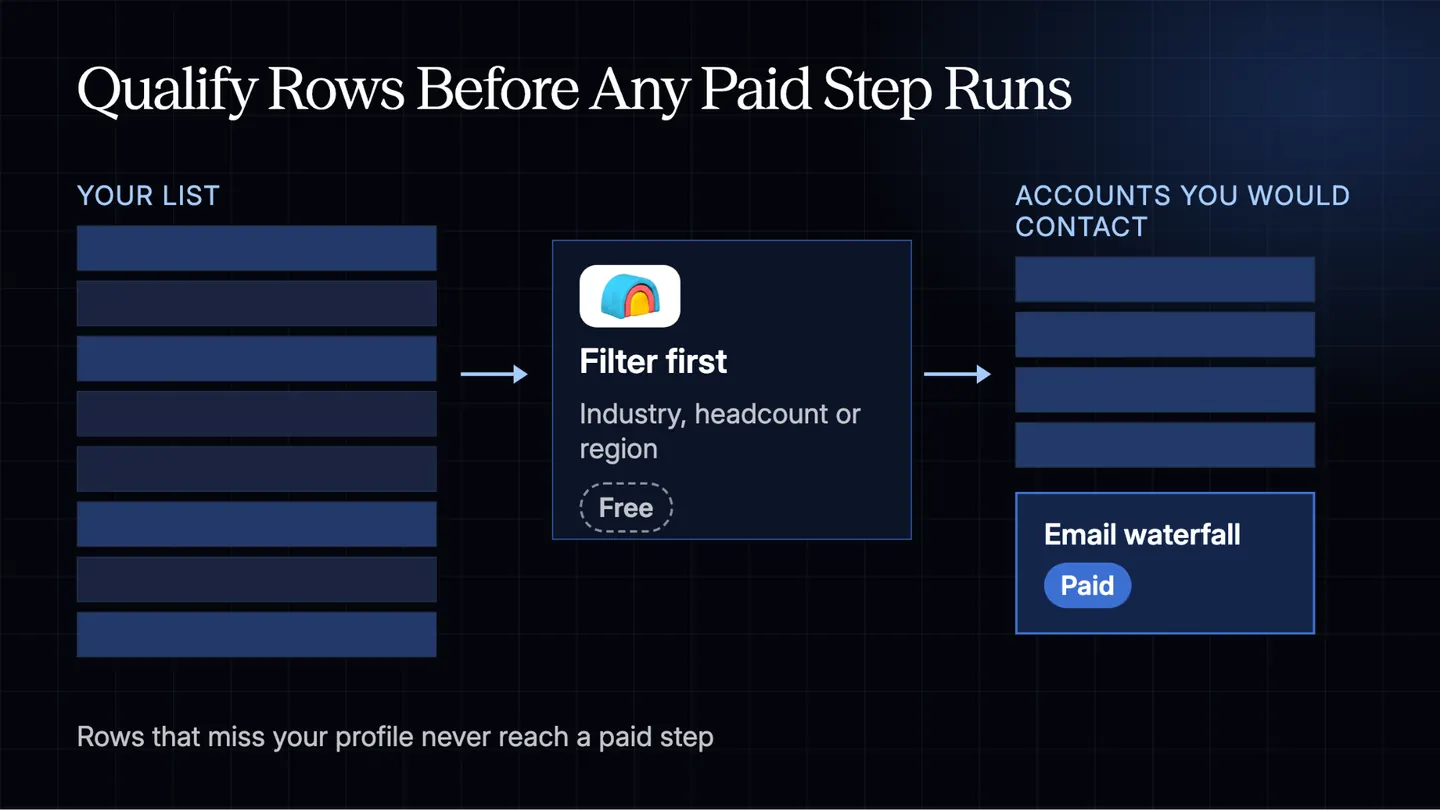
Only rows that fit your profile reach a paid step.
Before you add the waterfall, check four things on the table:
- Every row has a company domain, written without “https://” or “www.”
- Rows that don’t fit your profile are filtered out or marked so a run condition can skip them.
- LinkedIn URLs sit in their own column, so you can map them as a second input.
- Auto-run is off while you build, so new rows don’t trigger paid columns.
With those four in place, the waterfall itself takes a few clicks.
Step by Step: Build a Work Email Waterfall in Clay
This walk-through uses Clay’s pre-built work email waterfall, the most common form of Clay contact enrichment. The steps follow Clay’s waterfall guide and its credit guides.
1. Add the Waterfall
Open your table, click Add enrichment at the top right and search for “Work Email.” Under Waterfalls, pick the work email waterfall. If you’d rather build one from scratch, click Add column at the far right, choose Waterfall, set the Data Type and add each provider as an action.
2. Map the Inputs
Map Company Domain first, then the LinkedIn URL column. If your list lacks LinkedIn URLs, map full name and company name as the fallback. Every provider in the sequence reads from these same inputs.
3. Order the Providers
Clay shows “a pre-arranged order of email providers optimized for coverage.” You can reorder, add or delete providers in the Waterfall sequence, and a toggle next to each one lets you skip it without deleting it. Turn on the option to output the name of the successful provider. That one extra column tells you later which providers are earning their place.
4. Set the Validation Rules
Each email a provider finds goes through a validator before the waterfall accepts it. Decide here whether catch-all addresses count as valid, because Clay counts them as valid by default.
5. Add a Run Condition
Open Run settings and choose Add run condition. Clay runs the enrichment only “when the formula evaluates to true,” and its Generate button writes the formula from a plain-language prompt. A typical condition is “the work email column is empty and the row fits the profile.” The same gate keeps any sales workflow automation from firing on records it shouldn’t touch.
6. Test on 10 Rows
Clay’s credit guide says to test “about 10 rows” before running the whole column. Check every result by hand, then scale to 50 rows and then 500, as Clay’s credit best practices lay out.
A 10-row test shows whether the inputs are mapped right and the providers return anything. It can’t show whether the order is right.
How to Choose the Provider Order
Clay’s default order is built for coverage, and your market may rank providers differently. Clay’s own blog tested 12 email finders on 1,075 small-business contacts and more than 3,700 enterprise contacts, in a post from May 2026. LeadMagic led on small businesses with 89% coverage, while Findymail led on enterprise contacts with 88%.
That ranking comes from Clay’s own test on Clay’s sample, and your accounts may sit in a region or segment where it changes.
Inside a waterfall, later providers only see the rows earlier ones missed, so their results aren’t comparable. To compare fairly, run each candidate on its own as a single enrichment column on the same 50 rows, drawn from every segment you sell to.
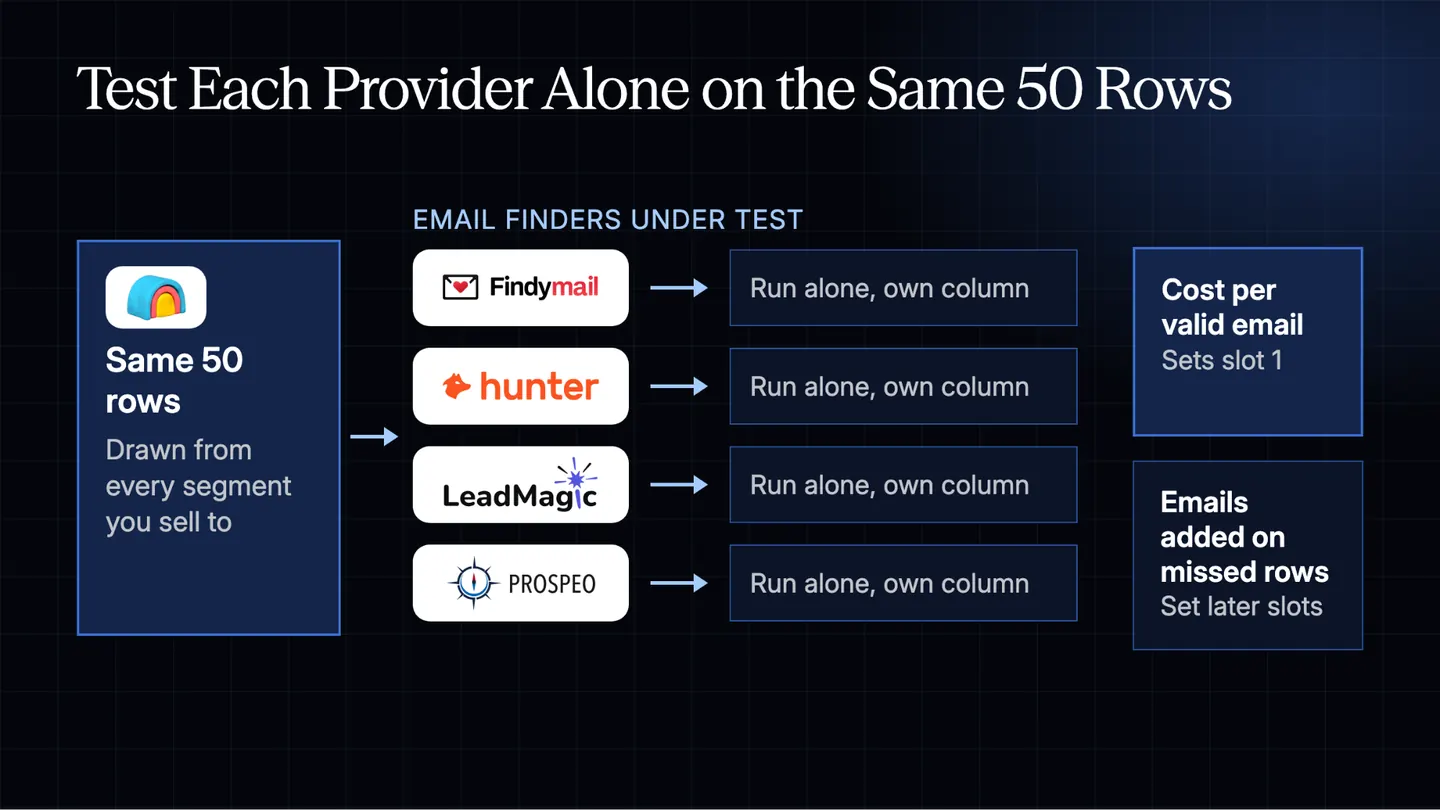
Run alone, each provider’s cost per valid email is comparable.
Turn each run’s credits and actions into dollars at your plan’s rates, then divide by the valid emails it found.
The first provider runs on every row that enters the waterfall, so its cost per valid email weighs most. The cheapest reliable provider for your segment is the natural first pick. For the later slots, what counts is how many valid emails a provider adds on the rows the earlier ones missed, which the same side-by-side results show.
Once the waterfall is live, the successful-provider column keeps the order honest. A provider that rarely wins a row is a candidate to move down or switch off. Testing like this before you commit a budget is everyday GTM engineering work.
Hand-check a sample too. In a Reddit thread on whether waterfalls are worth it, one commenter advised: “Pull 100 and hand-verify before you judge any of them” (r/b2bmarketing, anecdotal). The same commenter noted that when the same accounts keep coming back empty, more providers won’t fix it.
If you already pay a provider, connect your own API key. Clay’s billing guide says you pay no data credits on your own key, though “an Action will still be consumed.” A provider you already pay for often belongs near the top for that reason.
Validation: Stop Bad Emails Before They Reach a Sequence
In Clay contact enrichment, finding an email and finding a deliverable one are two different jobs. By default, Clay’s work email waterfall checks each found address with ZeroBounce, and you can switch to another validator if one suits your market better.
The setting that matters most is catch-alls. A catch-all domain accepts mail for any address, so a validator can’t confirm the person exists. Clay’s lesson says “by default, Clay considers catch-all emails valid,” and offers a toggle to count only “Safe to Send” emails as valid. If deliverability is your worry, turn that toggle on and route catch-alls to a separate column.
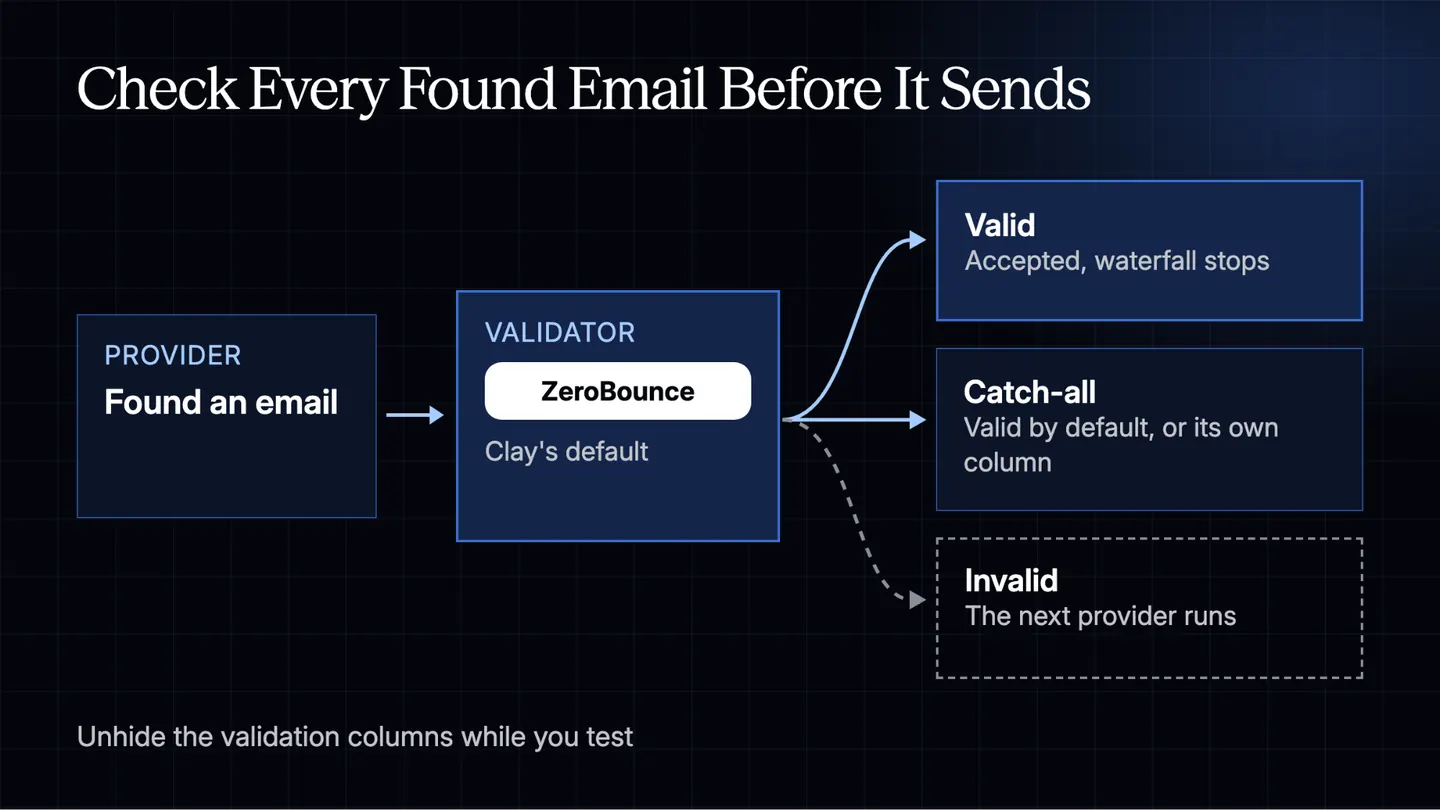
A found email only counts once the validator passes it.
Validation columns are hidden by default, so unhide them in the Columns panel while you test. You’ll see each provider’s answer and the validator’s verdict side by side, and spot a provider whose addresses keep failing.
Bad addresses cost more than credits, whether your own team sends or one of the cold email agencies does it for you. Google’s sender guidelines tell anyone mailing Gmail users to keep the spam rate in Postmaster Tools below 0.10% and never reach 0.30%.
Google’s page also tells senders to unsubscribe recipients whose messages bounce repeatedly. Validation is how a waterfall keeps those addresses out of your sequences before they ever send.
What Each Clay Enrichment Lookup Costs
Each Clay enrichment lookup costs 1 action, plus 0.5 to 10 or more data credits when the data comes from Clay’s marketplace. Clay’s billing guide says each enrichment is “always 1 action,” with a data credit cost that varies by data type. For a fully enriched record, Clay’s typical range is 6 to 20 data credits, depending on the data types, your own API keys and how many providers your waterfalls use.
Failed lookups are where Clay’s pages need a careful read. Its pricing FAQ says that “if an enrichment returns no result, you’re not charged Data Credits or Actions.”
Clay’s newer refund guide is more precise. It says many actions are charged even when the provider finds no match, then lists the exceptions that refund on No data. Many work email finders are on that list, including Findymail, Hunter, Prospeo and LeadMagic.
This table sums up how Clay’s guides describe each outcome for one step of a work email waterfall.
| What the step returns | What Clay charges | Source |
|---|---|---|
| A valid email from Clay’s marketplace | Data credits plus 1 action | Clay’s waterfall FAQ |
| A valid email through your own API key | 1 action, no data credits | Clay’s billing guide |
| No data from a provider on the refund list | Refunded automatically | Clay’s refund guide |
| An email the validator marks invalid | Charged, then the next provider runs | Clay’s refund guide and waterfall FAQ |
| Nothing, because the run condition wasn’t met | Refunded | Clay’s refund guide |
Read the last two rows together. A wrong but plausible email costs money, and so does each validation step, which is why the order of providers matters more than their count. A run condition costs nothing when it skips a row.
One Reddit commenter in a thread on waterfall costs summed up the pattern: “Most credit burn comes from not gating steps” (r/gtmengineering, anecdotal). Clay also warns you before a run that would cost at least 5% of your monthly credit budget and more than 500 credits. What a credit costs in dollars depends on your plan, which our Clay pricing breakdown sets out.
Write Results Back to Your CRM Without Overwriting
Writing to the CRM is where enrichment can do damage. On Clay’s pricing page, CRM integrations are listed on the Growth and Enterprise plans, not on Free or Launch. Each record you send to HubSpot or Salesforce also costs an action.
The rule we work to is the one on our data enrichment service page: “Enrichment fills gaps and never overwrites a field a person owns.”
At Frontal, we start by agreeing with your team “which fields enrichment may fill and which ones stay with a person,” as that page puts it. A rep’s notes, the lifecycle stage and a job title someone corrected by hand are typical fields to keep with a person.
Clay’s integrations help, but they don’t enforce that rule for you. Both have an “Ignore blank values” setting. It stops a blank value in Clay from erasing a value in the CRM, but it doesn’t stop a new value from replacing an old one. Clay documents no “only write if the CRM field is empty” switch, so you build the check yourself.
This table compares the write-back settings in Clay’s two CRM guides.
| Setting | HubSpot in Clay | Salesforce in Clay |
|---|---|---|
| Find the existing record | Look up object, most precise on the HubSpot Object ID | Lookup record or a SOQL lookup |
| Change an existing record | Update object, which needs the object ID | Update record, or Upsert object with an external ID |
| Blank values from Clay | Ignored by default | Ignored when the setting is on, for text fields only |
| Duplicates | Look up first, then create only if nothing matches | Leave Duplicate rule override off, or Clay bypasses your duplicate rule |
The build pattern is the same in both. Look up the record first and pull the current value of each field you plan to write.
With those values in the table, set a run condition or a mapping formula so Clay writes only where that CRM value is empty. A condition that the looked-up job title is empty is a typical example. Clay’s own CRM lesson does the same for new contacts, running the create step “only if no matching contact ID is found.”
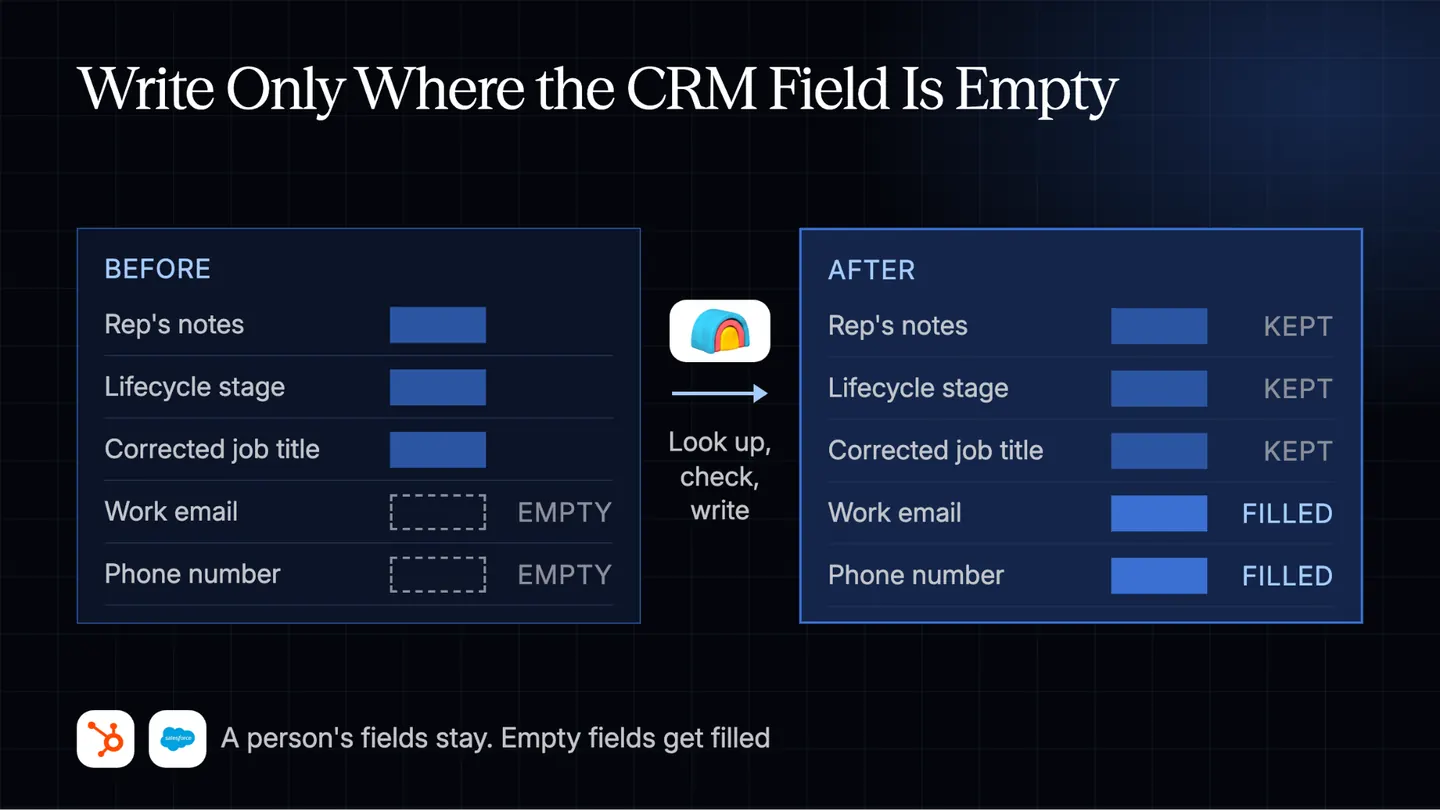
Look up first, then write only to empty fields.
Test the whole thing away from live data. Clay’s lesson suggests a 10-row test run. For a large account base, build in a sandbox first, the way Aircall’s database was built. Our service page adds one more step we hold to: “keep a way to roll back.”
Keep Enriched Data Fresh With Scheduled Runs
Enriched data starts going stale the day you write it, because people change jobs all the time. The Bureau of Labor Statistics counted 3.4 million quits across U.S. employers in September 2026, a quits rate of 2.1 percent for that one month. That figure covers all nonfarm workers, not only B2B buyers, but it shows why a list enriched once doesn’t stay right.
Besides re-running a column by hand, Clay gives you three ways to refresh. Two bill a normal run, and one reuses saved data for less.
| Refresh option | What triggers it | What it costs | Limits and advice |
|---|---|---|---|
| Auto-run | An input value in the row changes | A normal run for every changed row | Turn it off while you build |
| Scheduled columns | A set cadence: day, week or month | A normal run for every scheduled row | Not on Free; hourly is Enterprise only |
| Saved data reuse | A re-run inside the saved window, 30 days by default | No data credits, still 1 action | Beta; can’t serve actions that write to another tool |
Scheduled columns suit company facts that drift slowly. Clay’s own examples are headcount, funding and tech stack. Only enrichment and action columns can be scheduled, so schedule the waterfall and its CRM write together.
Saved data reuse is the cheap option, but Clay’s own guide says when not to use it. When you’re “validating or verifying data right before you reach out,” run fresh, and do the same for recent job changes or new contact details. A play for decaying CRM signals applies the same freshness rule to buying signals, so older data counts for less over time.
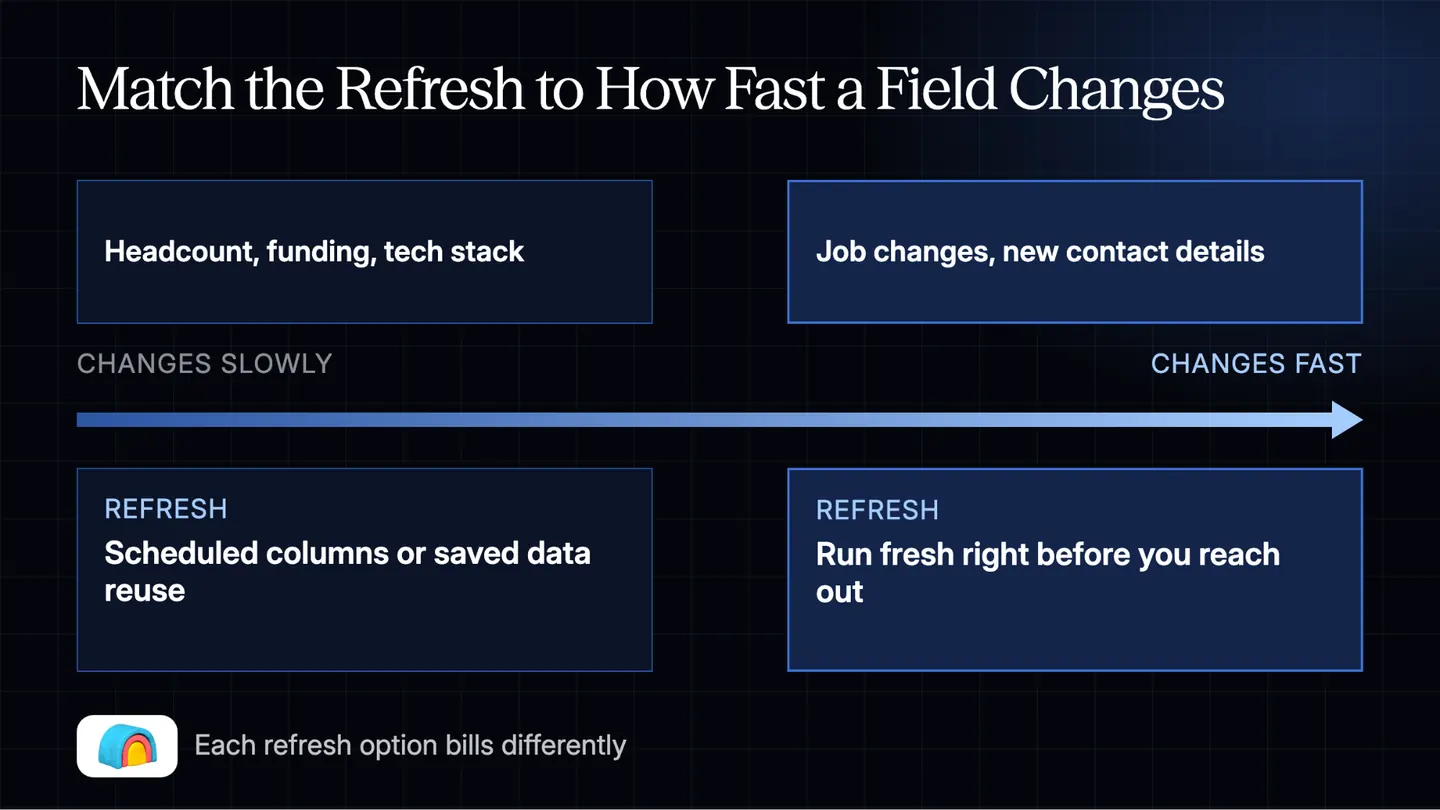
Reuse suits slow company facts. Recheck emails before outreach.
How Aircall Built an Account Database That Refreshes Itself
Aircall shows enrichment, controlled write-back and scheduled refresh at the scale of a whole market. Before the project, Aircall’s team “paid for ZoomInfo, Apollo, Lusha, and Cognism at the same time,” according to the Aircall case study. Four vendors still left it with no single view of its market.
Frontal built one market database inside Aircall’s Salesforce, with Clay doing the enrichment. A field dictionary came first, so a field like “employee count” meant the same thing in every region. The first version was “built and tested in a sandbox, against real workflows, before anything touched production Salesforce.”
Each account was graded against a tiered ideal customer profile for its region, then “written back to Salesforce under controlled update rules.” Clay workflows then refresh company facts on a schedule: size, industry, region and the tech each account runs. The result was 3,655 accounts created and enriched into the database in 6 months, kept current by that schedule.
The 3,655 accounts are records, not pipeline. The case study counts accounts in a clean database, which is the job enrichment does before any campaign can use them.
A Pre-Launch Checklist for Your Clay Enrichment
A first waterfall on 10 test rows goes quickly, but Clay’s docs don’t say how long a full setup takes, and the slowest parts come after the test. Provider order needs a real sample, write-back rules need your team’s agreement, and the refresh schedule needs a decision on every field.
Run through this list before you switch auto-run back on:
- The waterfall ran on 10 rows, then 50, then 500, and you checked the small runs by hand.
- The successful-provider column shows which providers earn their place.
- Catch-all handling is set the way your sending team wants.
- Every paid enrichment column skips rows already filled, apart from the email re-check right before outreach.
- The CRM write looks up the record first and writes only to empty fields.
- The list of fields enrichment may fill is agreed and written down.
- Each refresh cadence matches how fast that field changes.
- The credit estimate for the full run fits your monthly budget.
If any item is still open, keep auto-run off. The same checks apply when you clean records already in the CRM, which is the work behind most CRM data cleansing services.
When to Bring In a Clay Partner
Most teams can build their first Clay lead enrichment waterfall alone. The harder part is keeping it right across a CRM other people use every day. Field rules, refresh schedules and duplicate handling all need an owner after launch.
That’s the point where teams look for help, either from a Clay automation agency or from a RevOps hire of their own.
Frontal builds the tables and waterfalls in your own Clay workspace and tests them on a sample first, then writes the results into HubSpot or Salesforce under agreed rules. Most clients start with one service, and we fit best with B2B companies past product-market fit with a real sales team. We agree scope and price with you on a call.
Get Enrichment Your Sales Team Can Trust
Good enrichment comes from doing the work in order: qualify the rows, gate every paid step, validate before you accept, and write only where a field is empty. A waterfall built that way spends credits on the rows you’ll contact and leaves your team’s work in the CRM alone.
If you’d like a second pair of eyes on your field rules or provider order, we’re happy to look at your setup. Book an intro call.
Frequently Asked Questions
What is Clay data enrichment?
Clay data enrichment is the process of filling in missing fields on a Clay table, such as work emails, phone numbers or company details. Each enrichment column sends a row’s inputs to a data provider and writes the answer back. Clay connects to more than 150 providers, so you can combine several instead of relying on one.
How does Clay waterfall enrichment work?
A Clay waterfall asks providers one at a time, in an order you set, and stops for that row as soon as one comes back with a valid answer. For a work email, each found address is validated before the waterfall accepts it. Rows the first provider can’t fill pass to the second, and so on until every provider has been tried.
Does Clay charge for failed enrichment lookups?
Clay’s pricing FAQ says an enrichment that returns no result isn’t charged. Its refund guide adds that many actions charge either way, with a listed set of exceptions that refund on No data, including many work email finders. An email the validator marks invalid is charged, so a run condition that skips filled rows saves the most.
Is Clay better than Apollo for lead enrichment?
Clay and Apollo do different jobs. Apollo sells access to its own contact database, while Clay lets you query many providers in one table, and Clay’s waterfall page lists Apollo as one of them. A team can run Apollo as one step in a Clay waterfall and let the next provider pick up the rows Apollo missed.
Can Clay update HubSpot without overwriting existing data?
Partly. Clay’s HubSpot Update object action ignores blank values by default, so a blank cell in Clay won’t erase a HubSpot value. It will still replace a filled field with a new value, so look up the record first and write only where the field is empty.
Our CRM hygiene play also backs up the records first and logs every change with its old value, so a bad write can be undone.
How often should you refresh enriched data in Clay?
Match the cadence to the field. Clay’s scheduled columns run daily, weekly or monthly, and suit slow-moving company facts like headcount and tech stack. Re-verify emails right before outreach instead of on a calendar, as Clay’s own guide advises. Scheduling those runs keeps the refresh from depending on someone remembering it.
Can Frontal set up Clay enrichment for our team?
Yes. We build the waterfall, validation and CRM write-back in your own Clay workspace, test it on a sample first and agree up front which fields Clay may fill. It’s part of our GTM engineering work, and we document the setup and train your team to run it.