Key Takeaways
- A first Clay table takes five steps: pick a source, add columns, add one enrichment, write one formula and export the result. Clay’s own beginner framework calls the same order Find, Enrich, Transform, Export.
- Turn off auto-run before you add any enrichment. Clay enables it by default, so every new row can spend actions and data credits while you’re still testing.
- Sourcing, formulas, filters and CSV exports cost no actions. Enrichments, AI columns and records sent to other tools do, so a first table’s cost sits in the enrichment step, plus any records sent to a CRM or sequencer.
- Test every paid column on 5 to 10 rows before you run it on the full table. Clay’s table settings guide recommends that sample size for enrichments.
Clay tables are the spreadsheet-style workspace inside Clay, the go-to-market data tool. A table looks like a spreadsheet, but each column can call a data provider, an AI model or another app. That’s why a table with auto-run left on can spend credits on every row the moment it lands.
We’re Frontal, the go-to-market partner for B2B tech companies, working as an extension of your team. So you know where we stand, Clay has named us a Clay Elite Studio Partner.
This guide follows Clay’s own documentation as it read on November 16, 2026. You’ll build one table from blank to exported, with the mistake that burns credits named at each step. Through all five, the free work (filters, formulas and run conditions) decides which rows a paid enrichment ever touches.
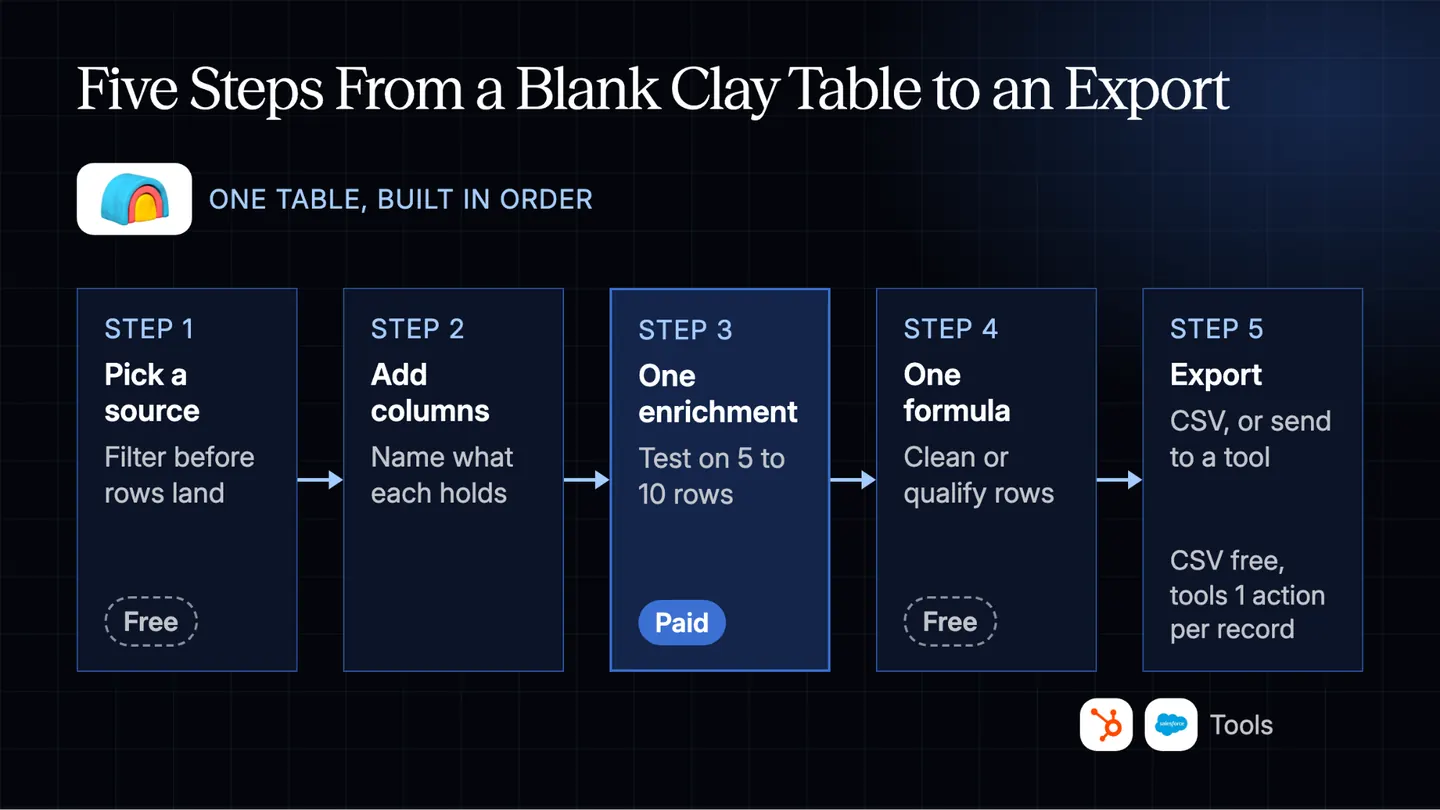
Paid columns, like the step 3 enrichment, and records sent to another tool are what cost actions.
The sections below take each step in that order, after a few setup choices you make before step one.
What Clay Tables Are and Where They Sit in the Clay App
A Clay table is a list of rows, usually companies or people, with columns that fill themselves in. Clay’s help center puts it simply: “Every Clay table begins with a source.” The source fills the first columns. Every column you add after that either stores data you already have, fetches it from a provider or AI model, or reshapes it with a formula.
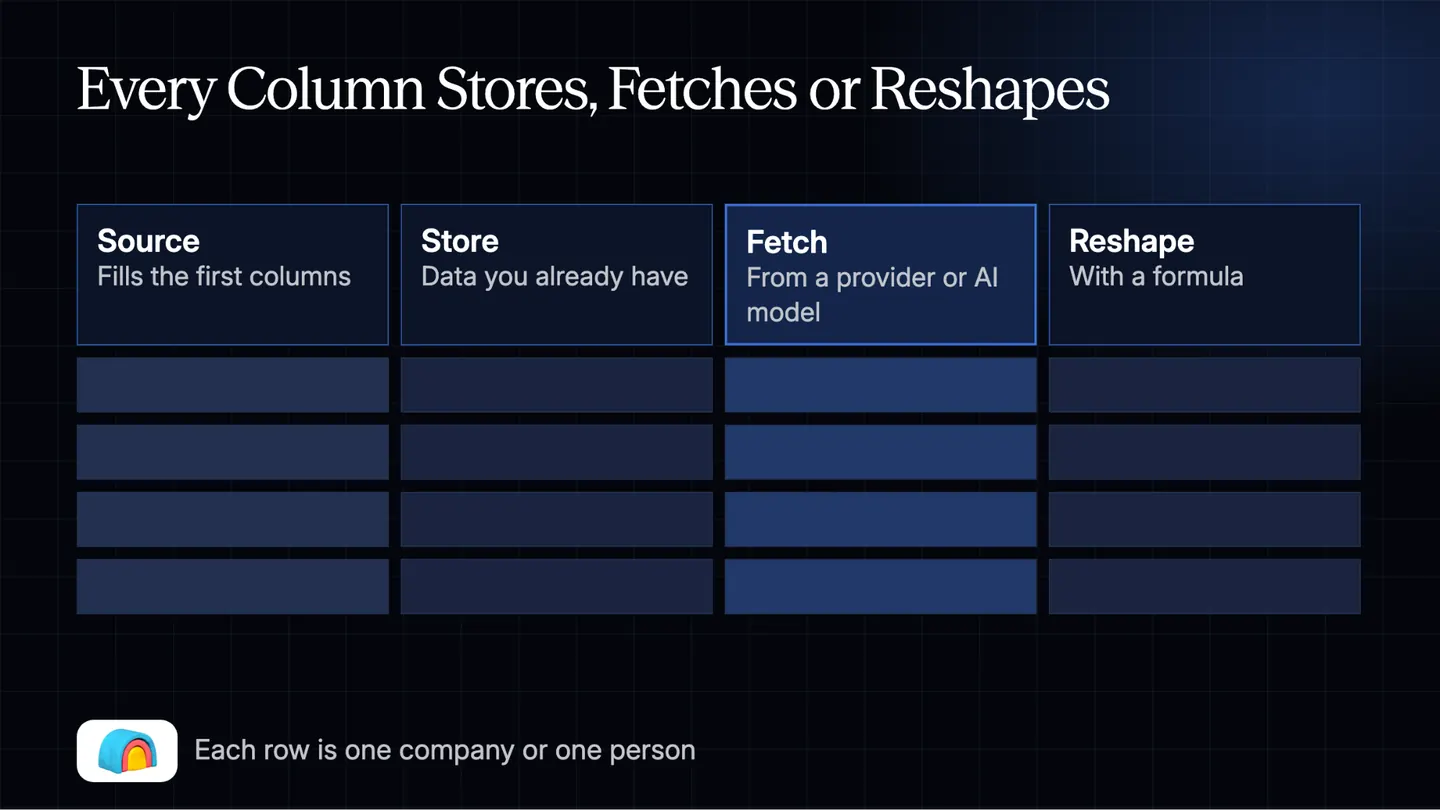
Every column after the source stores, fetches or reshapes.
Clay tables live inside workbooks, and workbooks live inside folders. You create a new table with ”+ Add” at the bottom of a workbook. Be careful with deletes, because Clay’s docs warn that deleting a workbook deletes every table inside it, and each one has to be restored on its own.
Clay has also added Audiences beside tables. Its course on the two puts the split this way: “Tables are your testing ground,” while “Audiences are for scale and for the source of truth.” The same lesson notes that a table caps at 50,000 rows. For a first build, that limit is far away, and a table is the right place to learn.
So treat your first table as a small Clay database you can see cell by cell. You’ll watch each enrichment fill in, spot bad results early and fix the logic before anything reaches your CRM. That visibility is what Clay’s course means by a testing ground, and it’s a habit worth keeping as your GTM engineering work grows.
Before You Start: Decide What One Row Is and Turn Off Auto-Run
Decide what one row stands for before you touch the Clay app. A row is either one company or one person, never both. Write down the five or six fields you need at the end, such as company domain, job title and work email. Everything you build should serve that list.
A Reddit user on r/gtmengineering gave a beginner the same advice: “draft out what the workflow looks like” before you build. It’s one anecdote from Reddit, but it matches what Clay’s own guides teach.
Next, switch off auto-run. Clay’s table settings guide says auto-run “automatically runs enrichments whenever rows are added or edited” and is “Enabled by default.” To turn it off, click the table name, then toggle “Auto-run” under Run Settings. You can also click “Auto-run” in the table toolbar and toggle it off, after which the button reads “Manual.”
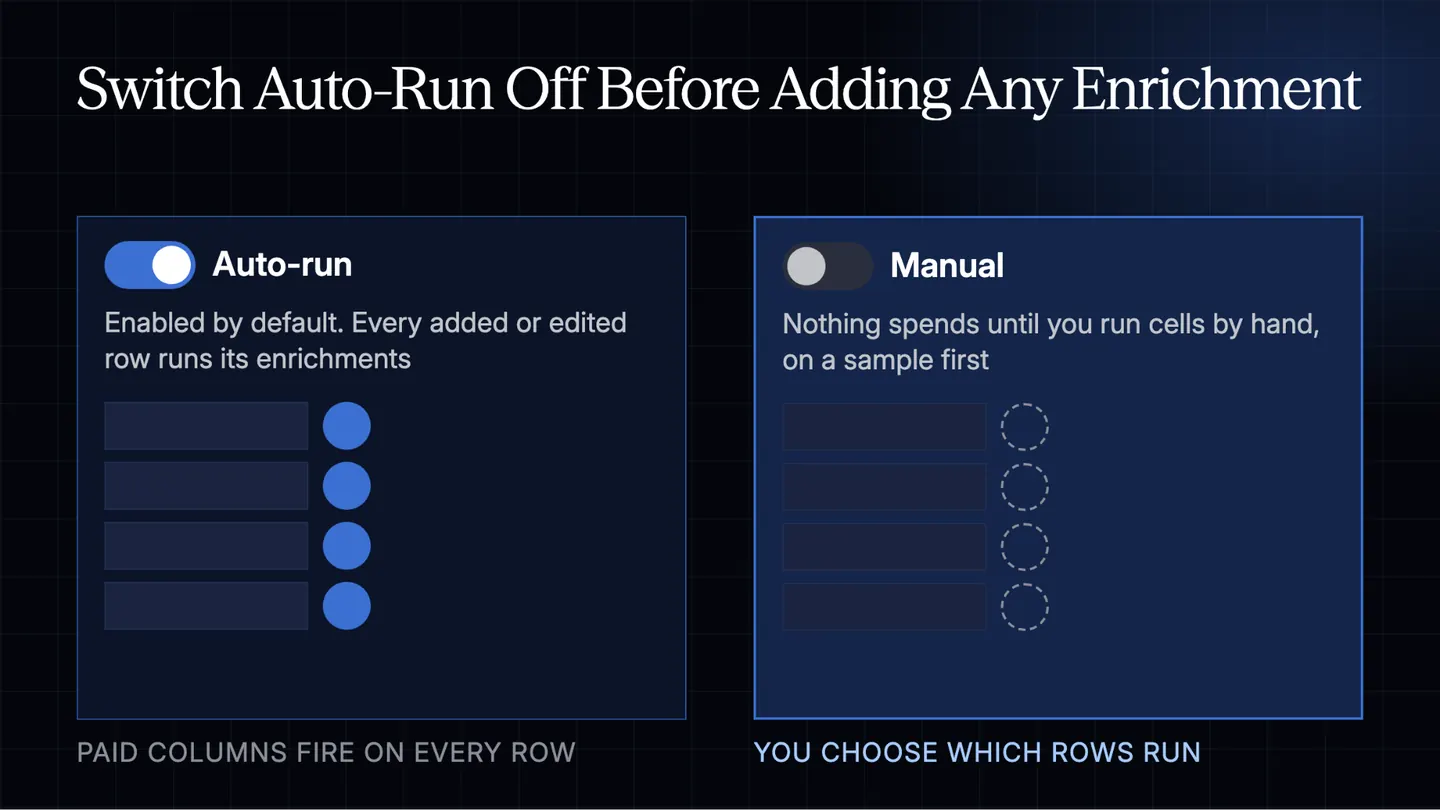
Auto-run is on by default, so switch it to Manual before adding any enrichment.
While you’re in settings, check that “Keep existing results” is on. With it on, only errored, empty or new cells can run automatically. Clay recommends it “to avoid accidentally overwriting data and wasting credits.”
Know your budget before you start, too. On Clay’s pricing page, the Free plan comes with 500 actions and 100 data credits each month and runs up to 200 rows per table. Launch starts at $185 a month billed monthly, with up to 50,000 rows per table. Which allowance runs out first depends on what your tables do, as the three sample monthly bills in our Clay pricing breakdown show.
Step 1: Pick a Source and Create the Table
Your source decides how much of the table’s data is free and how much you’ll pay to fill in. Clay lists four kinds: list builders (Find Companies and Find People), CRM systems such as HubSpot and Salesforce, webhooks and CSV files. The table below compares them for a first build.
| Source | How you start it | Cost to bring rows in | Limit worth knowing |
|---|---|---|---|
| Search (Find leads) | Homepage, “Find leads” card, then “People” or “Companies” | Filtering costs no credits; core data points are included | Up to 50,000 results per Find People search |
| CSV file | Workspace home, ”+ Create new”, search “CSV” | No actions or data credits for first-party data | The table’s row limit for your plan |
| CRM (HubSpot, Salesforce) | In a workbook, ”+ Add”, search “HubSpot” or “Salesforce” | No actions | CRM integrations need Growth or Enterprise |
| Webhook | In a workbook, ”+ Add”, search “Webhooks”, then “Monitor webhook” | No actions | 50,000 submissions, and the count stays after you delete rows |
For a first table, start with a CSV of accounts you already know, or a narrow search. Both keep the list small enough to check by eye.
Building the List With Search
Search is now the default in Clay’s “Find leads” card. Type your ideal customer into the “I’m looking for…” box, refine the results in “Filters,” then click “Continue” and “Save to new workbook and table.” Clay’s docs say filtering doesn’t cost credits, and you only pay for extra data you choose to enrich.
That makes filters your cheapest tool. Clay’s own guide flags a common sourcing mistake: pulling a large list, then running enrichments to qualify it. You end up paying credits for companies you’ll throw away. Filter by industry, size and location first, so every row that lands in the table is one you’d actually contact.
Importing a CSV Instead
Importing a CSV is the safer start if you already have an outbound list in a spreadsheet. From your workspace home, click ”+ Create new,” search “CSV,” then upload the file with “Browse files.” Choose “Create new table,” match your columns and pick “Save and don’t run.”
Don’t skip that last choice. The alternative, “Save and run rows in this CSV,” runs any enrichments on every imported row at once. One more catch: editing a table’s source after it has run won’t update the old results, because Clay doesn’t reprocess data it already generated.
Step 2: Add and Organize Your Columns
Each column you add either stores data or does work on it. To add one, scroll to the right edge of the table and click “Add column,” or open an existing column’s menu and choose “Insert 1 column right.” You then pick a data type or one of Clay’s special column kinds.
The plain data types store what you already have: Text, Number, URL, Date, Email, Checkbox, Select and a few more. Clay calls the Checkbox type “Ideal for conditional runs,” because a ticked box can tell a paid column when to run. The special kinds do the work: “Use AI” for AI research or writing, “Waterfall” for checking several providers in turn, “Formula” for calculations and “Merge columns” for combining fields.
The credit mistake at this step is adding “Use AI” columns before you need them, because each row an AI column processes uses an action, plus data credits unless you bring your own API key.
Enrichments also hide extra data inside each cell. Click an enrichment cell and the “Cell details” panel opens on the right. Hover over a field you want, such as a company’s employee count, and click “Add as column” to pull it into its own column.
Keep the column count lean. Clay’s columns guide sets a default of 100 columns per table, of which 40 can be enrichment columns, or 60 for tables using phone or email waterfalls. A Clay FAQ says there’s no column limit, so treat the guide’s 100 and 40 as defaults and plan around them. Name each column for what it holds, so anyone who later joins a list-building project can read the table without asking you.
Step 3: Add One Enrichment, Tested on a Sample
Enrichment is a paid step, so add exactly one and test it on a small sample. Clay’s actions guide says each enrichment uses 1 action, and the panel shows the data-credit cost “next to each enrichment option” before you run anything. Follow this order for your first one:
- Click “Add enrichment” in the top right of the table, or press Cmd/Ctrl + E.
- Search for the data you need, such as Enrich Company.
- Select a single provider under “Integrations,” not a multi-provider option under “Waterfalls.”
- Pick Clay’s account, or click ”+ Add account” to connect your own API key for that provider.
- Map the inputs it asks for, such as company domain or LinkedIn URL.
- Open the run settings and add a run condition, so the column runs only on rows that need it.
- Run it on a sample of 5 to 10 rows and read every result.
Clay’s table settings guide spells out the same test: turn auto-run off, add 5 to 10 sample rows and manually test enrichments by clicking cells. Its credit-saving guide adds that you can “test it on 10 rows or apply it to the entire column.” Don’t run the rest yet, because step four adds a free formula that decides which rows deserve the paid lookup.
The account you connect changes the bill. Clay’s docs say connecting your own API key removes the data-credit cost, though an action is still used. Any charge for the lookup then moves to your own account with that provider.
Clay says a fully enriched record, one that runs several enrichments, typically costs 6 to 20 data credits. For your own run, multiply the price the panel shows by the number of rows your run condition lets through.
Set a Run Condition Before You Run It
A run condition stops a paid column from firing on rows that don’t need it. Some Clay pages call it “Add run condition” and others “Only run if,” but both open the same control. Type a rule like “Email is empty” or “LinkedIn URL is not empty,” or click “Generate” and describe the rule in plain English.
This guide stops at a single column, because waterfalls add provider order and a cost per lookup to the plan, which the Clay data enrichment walkthrough covers.
Step 4: Write One Formula to Clean or Qualify Rows
Formulas are free, and they can do work you’d otherwise pay an enrichment or AI column for. Clay’s actions guide lists transforming data within Clay as using no actions and no data credits. A formula can clean a field, combine two fields or decide whether a row deserves a paid enrichment.
To add one, click “Add column” and choose “Formula.” In the sidebar, describe what you want and type ”/” to reference a column, then click “Generate.” The button reads “Regenerate” once a formula exists. Clay’s Formulas doc says formulas run as JavaScript expressions and support spreadsheet functions like IF, SUM and CONCATENATE.
A good first formula comes straight from Clay’s examples: “Extract the domain from {{Email}}.” It turns a list of emails into domains, the input a company-level lead enrichment lookup needs. Another is a qualifying check, such as a company being in your target region, that returns true or false.
That true-or-false column can then gate the enrichment from step three. Edit its run condition to point at the formula, then run the remaining rows, and the paid column only fires where the formula says yes.
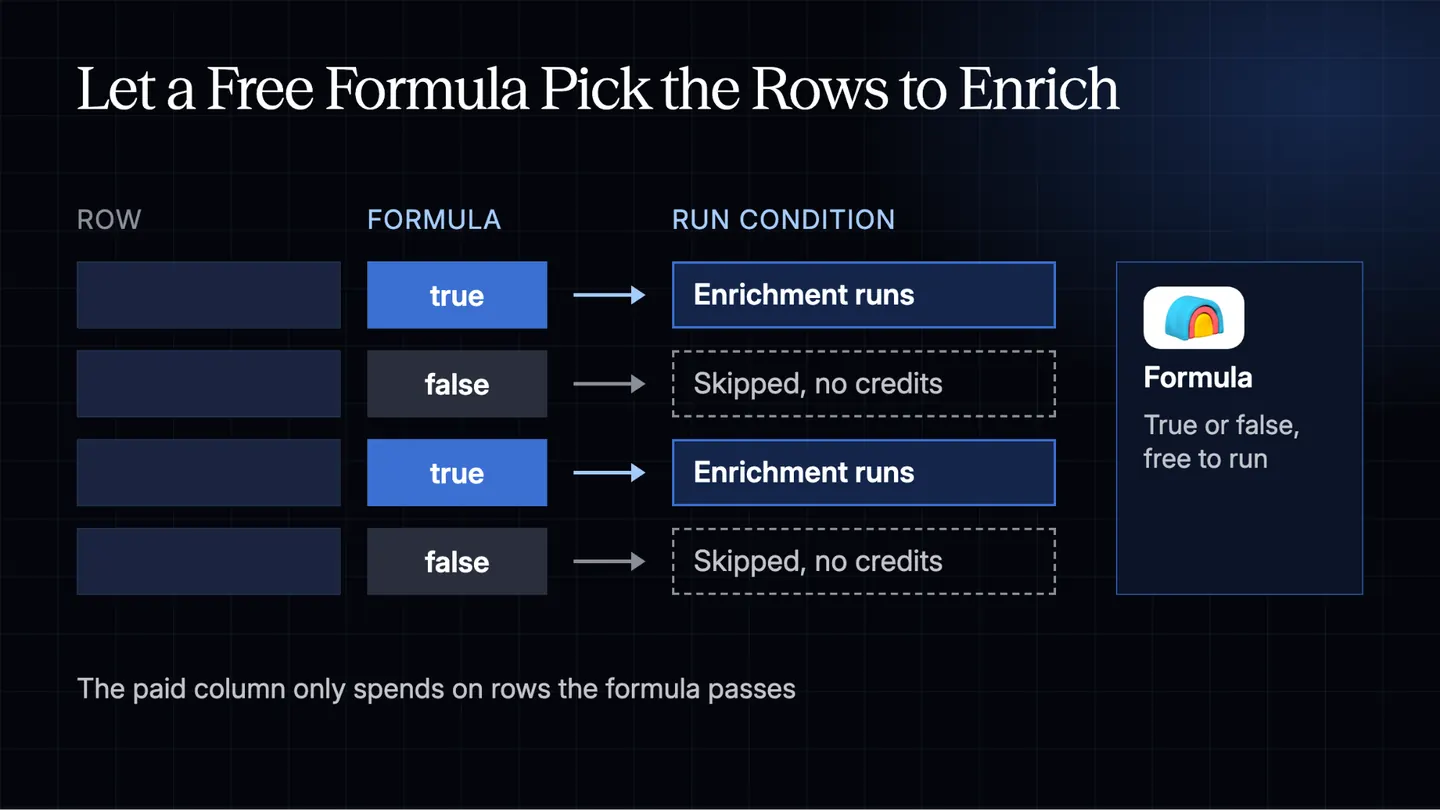
The formula is free, so the paid column only spends on rows it passes.
On your next table, build the formula first, so the free column is in place before any paid one runs. When you edit a formula later, choose “Save and don’t run enrichments,” so changing one formula doesn’t re-trigger paid columns further along the table.
A Reddit user on r/gtmengineering put the same order bluntly. Their advice: “build your company list first - filter by the company characteristics first, then find the people you want.” Skip that, they warned, and “you’ll end up enriching a lot of unused records.” It’s one user’s advice on Reddit from 2025, and it’s exactly what a free formula plus a run condition gives you.
Step 5: Export the Table or Send It to Another Tool
The last step gets your rows out of Clay, and how you send them changes the cost. Clay’s actions guide lists 1 action per record when you export to another tool or run a go-to-market task. A plain CSV download costs nothing. The table below compares the four routes a first table usually needs.
| Destination | Where you start | Actions used | Plan note |
|---|---|---|---|
| CSV download | “Tools” menu, “Export,” then “Download CSV” | None | All plans |
| Another table in your workspace | “Exports,” then “Send table data” | None | Up to 20 connected tables, sent in one direction |
| HubSpot or Salesforce | “Add enrichment,” search the CRM, then “Look up object” and “Create object” | 1 per action per record: 1 when the look-up finds a match, 2 when it also creates | CRM integrations need Growth or Enterprise |
| Email sequencer | Clay’s “Add Lead to Campaign,” or an integration | 1 per lead or record | Clay’s compare table lists campaigns from Launch |
To download a table from Clay, open the “Tools” menu, find “Export” and click “Download CSV.” Clay keeps past files under “Available Exports.” Check the CSV before you use it, because Clay’s lesson warns that integration fields showing “run condition not met” export as blank cells.
For a CRM write, look up before you create. Clay’s lesson on CRM exports recommends checking whether a record exists before writing a new one, which keeps duplicates out of HubSpot or Salesforce. Once a table writes to your CRM on a schedule, it’s part of your sales workflow automation, and it needs an owner.
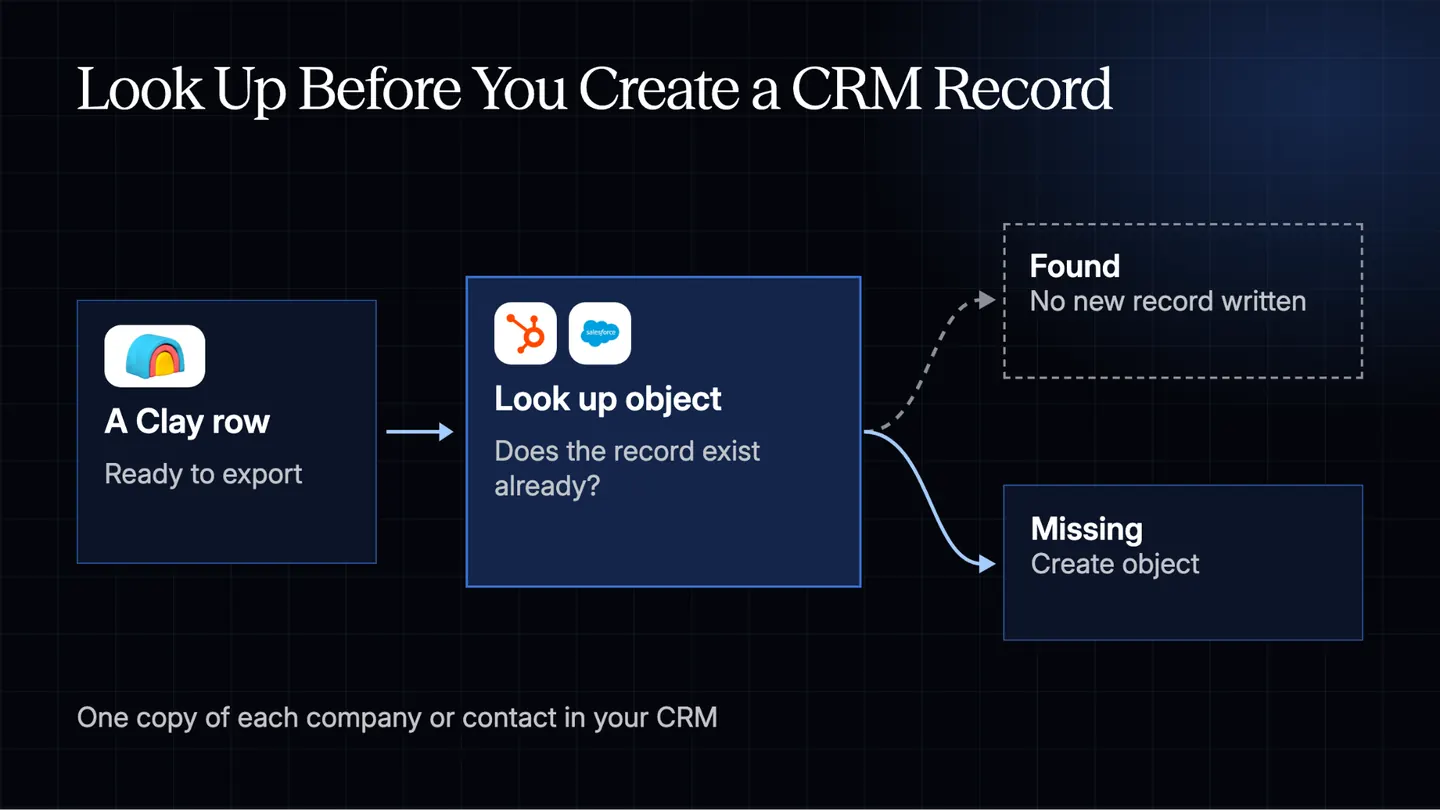
A look-up first keeps a second copy of the same record out of your CRM.
In Clay’s lesson, the create step only runs if the look-up found no matching record, so a rerun doesn’t write the same contact twice.
A Pre-Run Checklist Before the Full Run
Most wasted credits in Clay tables trace back to a few habits. Clay’s actions guide names the usual causes of unexpected spend: auto-run left on, AI columns that charge for every row processed, and re-running columns that already ran. Run through this list before you run the whole table:
- Auto-run is off at the table level, and the toolbar reads “Manual.”
- “Keep existing results” is on, so finished cells don’t re-run.
- The list is filtered before any paid column touches it.
- Every paid column has a run condition, ideally fed by a free formula.
- The enrichment has run on 5 to 10 rows, and you’ve read each result.
- You’ve checked your balance under Settings, then Usage.
Clay’s own advice for scaling is to start with 5 to 10 rows, then 50, then 500. On the Free plan the climb stops early: Clay’s pricing page caps a table at 200 rows, and one Clay FAQ says 50. Each jump is a chance to catch a bad mapping while it’s still cheap. Testing in small batches belongs in any recurring CRM hygiene job too.
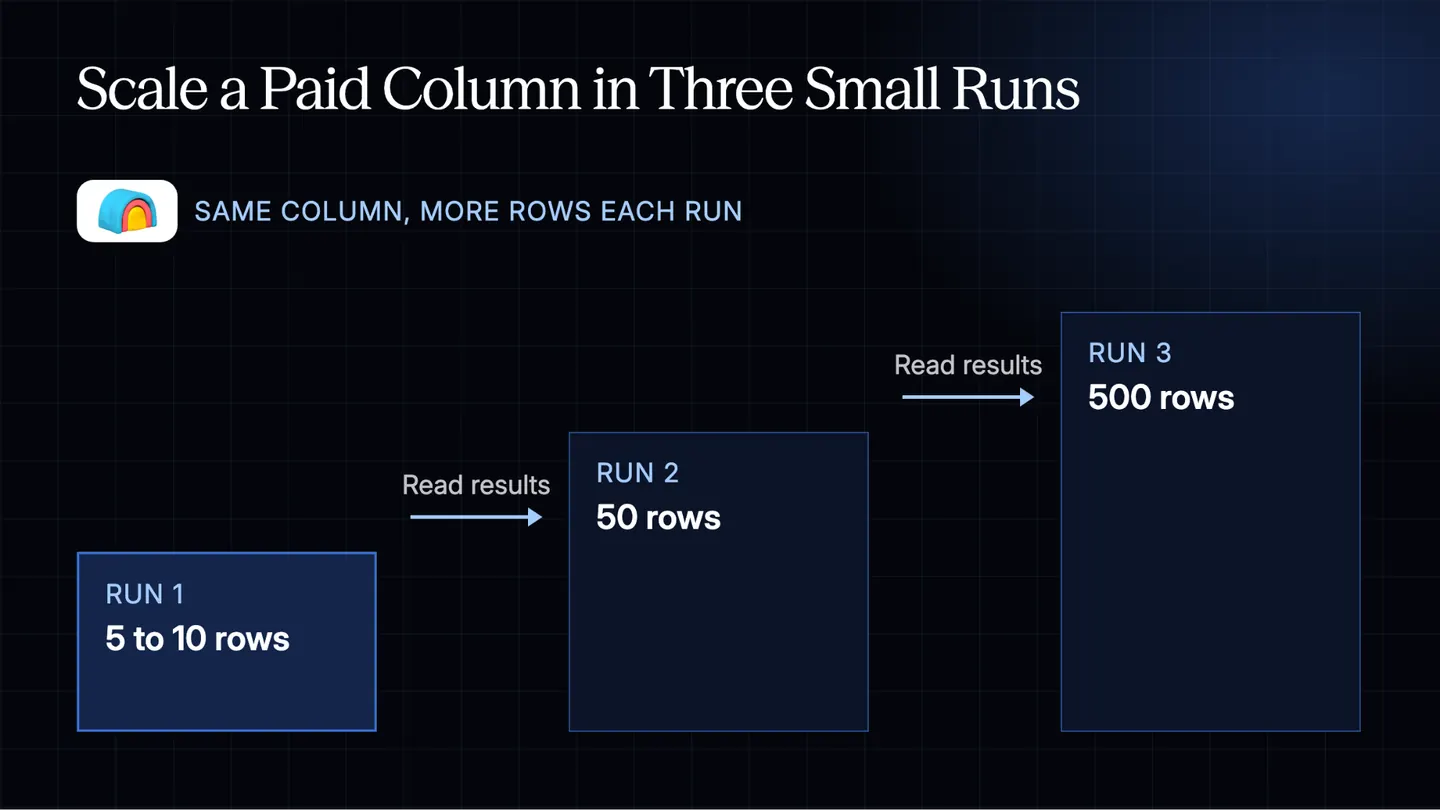
Read the results at each jump before running the next batch of rows.
Refunds for empty results need one more check. Clay’s pricing page says you aren’t charged when an enrichment returns no result. Its more detailed Credit refunds page says many actions charge whether or not the provider finds a match, and only some refund. Treat refunds as provider-specific and watch the usage page after your first run.
Why a Clean First Table Pays Off Later
A messy table doesn’t stay in Clay. It flows into your CRM, your sequences and your reports. In MIT Sloan Management Review, data quality consultant Thomas Redman estimated in 2017 that bad data costs most companies 15% to 25% of revenue. It’s a consultant’s estimate built from several studies, but it shows how far small errors can travel.
The time cost shows up every week. Validity’s State of CRM Data report for 2026 found that 32.7% of marketing teams lose six or more hours a week fixing, reconciling or double-checking CRM data. Only 26% of marketers believe more than three-quarters of their CRM data is accurate and complete. Validity sells data-quality tools, so read it as a vendor’s survey of marketers.
A few habits inside your Clay tables keep that mess out. Dedupe before you export, and remember Clay’s warning that deduplication is case-sensitive and deleted rows can’t be recovered. Normalize company names with a formula. Look up CRM records before you create new ones. Skip them, and the cleanup moves into your CRM, where it becomes a CRM data cleansing job.
When One Table Becomes a System Your Team Has to Maintain
Your first table answers one question for one campaign. The trouble starts when it works, gets copied and quietly becomes the place your pipeline data lives. Our own Clay partner page names the pattern: “A table gets built for one campaign, then goes stale because no one owns it after launch.”
At Frontal, our GTM engineering work builds tables the way this guide describes, small and tested first. In our words: “We build the tables, waterfalls and signal workflows in your workspace and test them on a sample first.” Each table and workflow gets documented, so your team can read and change it later.
How Playbook’s Clay Setup Became Its Own Team’s System
Playbook shows what that looks like once a team owns the work. Its setup ran “data collection feeding Clay for enrichment and segmentation, with Instantly running the campaigns,” and it produced 20 opportunities in the first 20 days. The Playbook case study also shows the handover: Playbook’s own team runs it today, after learning to monitor performance and adjust targeting themselves.
That handover is the test worth borrowing for your first table. Someone other than its builder should be able to open it, read the run conditions and know what it will spend.
Build Your Second Table With Less Guesswork
Once one table has gone from blank to exported, the second one is mostly copying good habits. Keep auto-run off while you build, put a free formula in front of every paid column and export to a CSV before you connect a CRM. Write down what each table is for and who owns it.
If your tables now feed the CRM and the sales team every day, we can help. We build and run them in your own Clay workspace, or document them so your team can.
Frequently Asked Questions
How do Clay tables work?
Every table in Clay starts from a source, such as a CSV file, a search, a CRM import or a webhook. Every column after that holds data you already have, pulls new data from a provider or an AI model, or calculates something with a formula. Enrichment columns use actions, and data credits unless you connect your own API key, while formulas, filters and imports cost no actions.
How do I download a table from Clay?
Open the table’s “Tools” menu, choose “Export,” then “Download CSV.” Earlier downloads stay listed under “Available Exports.” A CSV export uses no actions or data credits. Fields where a run condition wasn’t met come out blank.
How many rows can a Clay table hold?
Clay’s pricing page lists up to 200 rows per table on the Free plan and up to 50,000 on Launch. A Clay FAQ page still says trial and free accounts are limited to 50 rows, so check your own workspace. For a first table, 5 to 10 test rows and a list small enough to check by eye are plenty.
Do Clay enrichments use credits when they find nothing?
It depends on the provider and the action. Clay’s pricing page says an enrichment with no result isn’t charged. Clay’s more detailed Credit refunds page lists only some actions as refunded, because many are billed even when the provider finds no match. Test on a small sample, then watch the usage page before you scale.
Is a Clay table the same as a Clay database?
Not quite. A table is one list you build, test and export, capped at 50,000 rows on paid plans. Clay now points larger, long-lived lists to Audiences, which its course reserves for scale and for a team’s source of truth. For a first build, prototype in a table and write the records you keep to your CRM, then move to Audiences once your lists outgrow a table.
Can Frontal build Clay tables for our team?
Yes. Our GTM engineers build and run the tables and workflows inside your own Clay workspace, and every one runs on sample rows before it touches your full list.
Most clients start with one service, and Clay work sits in GTM engineering. We work best with teams past product-market fit with a real sales team. If you’re weighing Clay automation agencies, ask each one who keeps the tables after the project ends.