
Key Takeaways
- Clay ships two Chrome extensions. Clay for Chrome pulls structured fields from a list or from similar single pages. Clip to Clay saves whole webpages into a Clay table.
- Clay for Chrome sends a capture to a Clay table, a CSV file or your clipboard. Choose the table if you plan to enrich, qualify and send the rows on, because a CSV has to be imported back into Clay first.
- A recipe is reusable, but each capture is a snapshot of the page on the day you run it. Keep a list current by re-running the recipe on a fixed cadence, adding the new rows, then updating the ones that changed and retiring the ones that left the source.
- Clay’s pricing page names neither extension. Your plan sets how many rows a table holds and what you can run on them. A Free table takes up to 200 rows and a Launch table up to 50,000.
Plenty of lead lists start as a page somebody keeps copying from. It might be a partner directory, a conference speaker page or a marketplace of vendors in your category. The Clay Chrome extension turns that page into rows. Clay offers two: Clay for Chrome, which pulls fields from lists and single pages, and Clip to Clay, which saves whole pages into a table.
This guide takes both from install to a working table. You’ll build a list recipe and a single-page recipe on a real public directory. Then you’ll enrich, qualify and send the rows on inside Clay, with the plan each step needs.
You can run a saved recipe again at any time, but each run only records what the page said that day. So the list is only as useful as the Clay table you send it to and how often someone re-runs the recipe.
This guide comes from Frontal, the go-to-market partner for B2B tech companies, working as an extension of your team. We turn our clients’ ideal customer criteria into account and contact lists in Clay, the platform behind our Clay Elite Studio Partner credential.
What the Clay Chrome Extension Does
Clay’s documentation sums up the Clay Chrome extension in one line: “Extract structured data from any webpage.” It then splits the job between two extensions with different outputs.
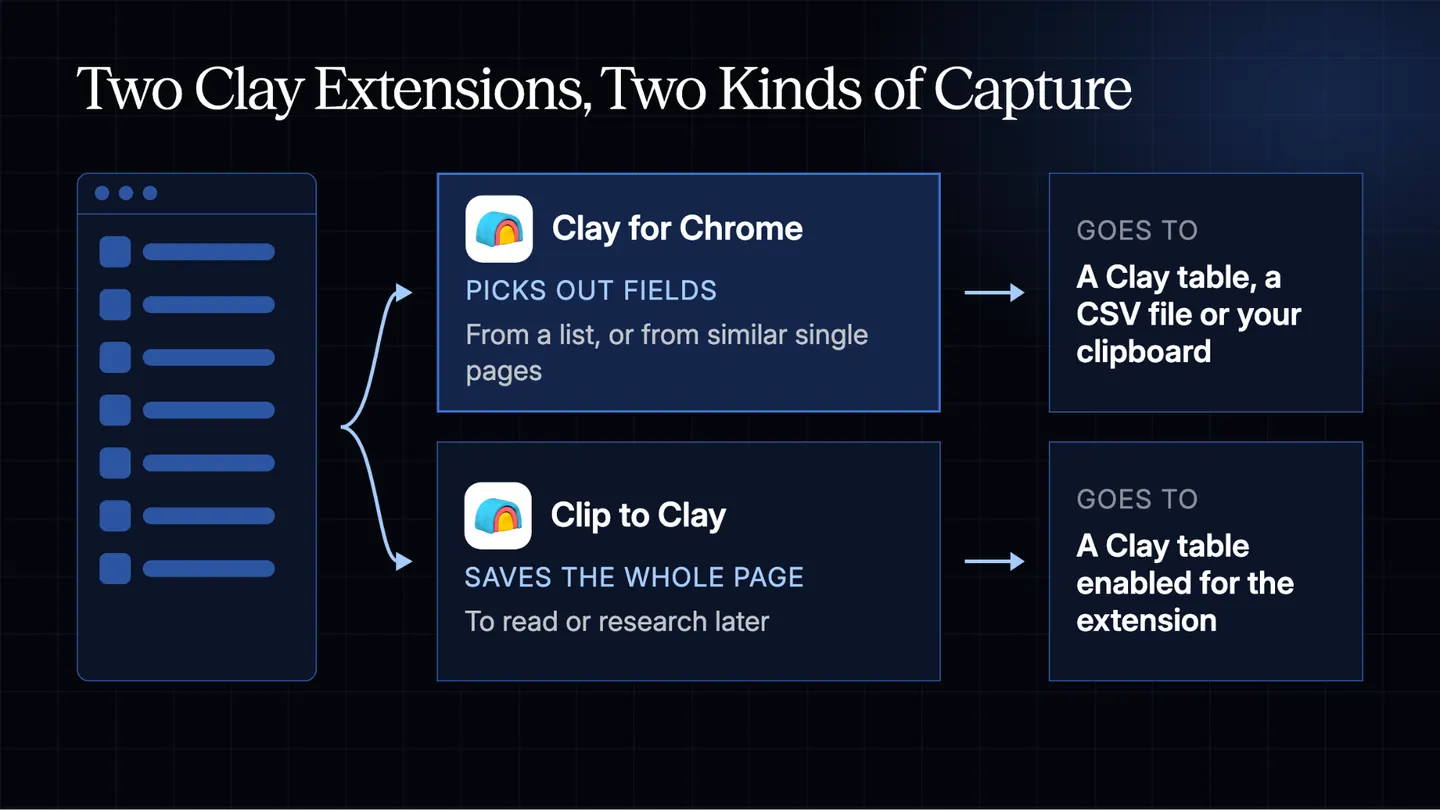
Clay for Chrome picks out fields, and Clip to Clay saves the whole page.
Clay for Chrome “lets you extract structured data from webpages, either from a list or an individual page.” Clay’s doc says the result “can be added directly to your Clay table, downloaded as a CSV, or copied to your clipboard.” The extension works three ways: lists it detects on its own, list recipes you map, and single-page recipes you map once and reuse.
Clip to Clay “allows you to quickly save entire webpages to your Clay tables.” It doesn’t pick fields out of a page. Clay positions it for “capturing unstructured data or bookmarking key pages,” so it suits pages you want to read or research later.
The same Clay doc also lists two tools under “Third party Clay tools”: Frontier and The Swarm. Clay didn’t build either one, so check the developer when you compare listings in the Chrome Web Store.
| Extension | Made by | What it captures | Where the data goes | Best for |
|---|---|---|---|---|
| Clay for Chrome | Clay (listed as Clay Labs) | Chosen fields from a list, or the same fields from similar single pages | A Clay table, a CSV file or your clipboard | Turning directories and profile pages into rows |
| Clip to Clay | Clay | The whole webpage | A Clay table enabled for the extension | Saving pages to read or research later |
| Frontier | Third party | Contact details and prospects on the page you’re viewing | Your Clay tables or CRM, per Clay’s pages | Reps prospecting one account at a time |
| The Swarm | Third party | Relationship paths to companies and people | Clay, through an integration | Finding warm introductions |
If you came for a Clay extension that builds lead lists, it’s the first row. A Clay table is where its captures become useful, so every step in this guide ends there.
How to Install Clay for Chrome
Install Clay for Chrome from its Chrome Web Store listing. Before you add it, read three lines: the developer, the last update date and the privacy disclosure. The developer should read Clay Labs. The listing also carries the label “Created by the owner of the listed website.”
On November 20, 2026, the listing showed version 1.0.0, last updated April 10, 2025. It had 10,000 users and a 4.4 rating from 9 ratings. The developer line checks out, but the last update was more than 19 months old on the day we looked.
If your company reviews browser extensions before staff install them, send the privacy disclosure to whoever runs the review. It says the extension handles “Personally identifiable information” and “Financial and payment information.”
Check the same three lines on any extension that can see the pages you visit. A peer-reviewed Chrome Web Store study, published at ACM AsiaCCS 2024, found that “60% of the extensions in the CWS have never been updated.” The authors also counted extensions they classed as security-noteworthy, which affected almost 350 million users.
Clip to Clay is a separate listing with its own install. Add it only if you plan to save whole pages, because Clay for Chrome handles every field-level capture on its own.
Start With an Autodetected List
Open Clay for Chrome on any page that shows a list, and look at what it found before you map anything. Clay’s doc says the extension “automatically detects list-like structures on the page and formats them into a table.” The store listing adds that Clay often recognizes a page “based on other peoples’ mappings or our auto-detection.”
Clay’s own course uses its experts directory as the test page. It calls tabular pages “particularly easy to target” and names that directory as its example. On November 20, 2026, clay.com/experts opened the Clay Solutions Partner Directory, with 196 results across 7 pages of 30.
From a detected list you have three ways out. You can “Export the list as a CSV or copy it to your clipboard,” in Clay’s words. Or you can “Add to Clay by opening the list in a new window and saving it directly to your table.” Pick the table route if the rows will be enriched or sent anywhere, because a CSV means a second import later.
Check two things before you trust an autodetected list. First, the column set: keep the fields you’ll use and drop the rest. Second, the row count.
Our local business TAM play starts the same way, by reading a directory’s result total before pulling a single listing. A directory that runs to 7 pages won’t fit on one screen, so compare your rows with the total the page reports. If the capture stops at the first page, open the next one and add its rows to the same table.
How to Build a List Recipe
A list recipe is the fix when autodetection misses the list or skips a field you need. Clay describes the format as a way to “Extract multiple items from a structured list, such as a directory or table.”
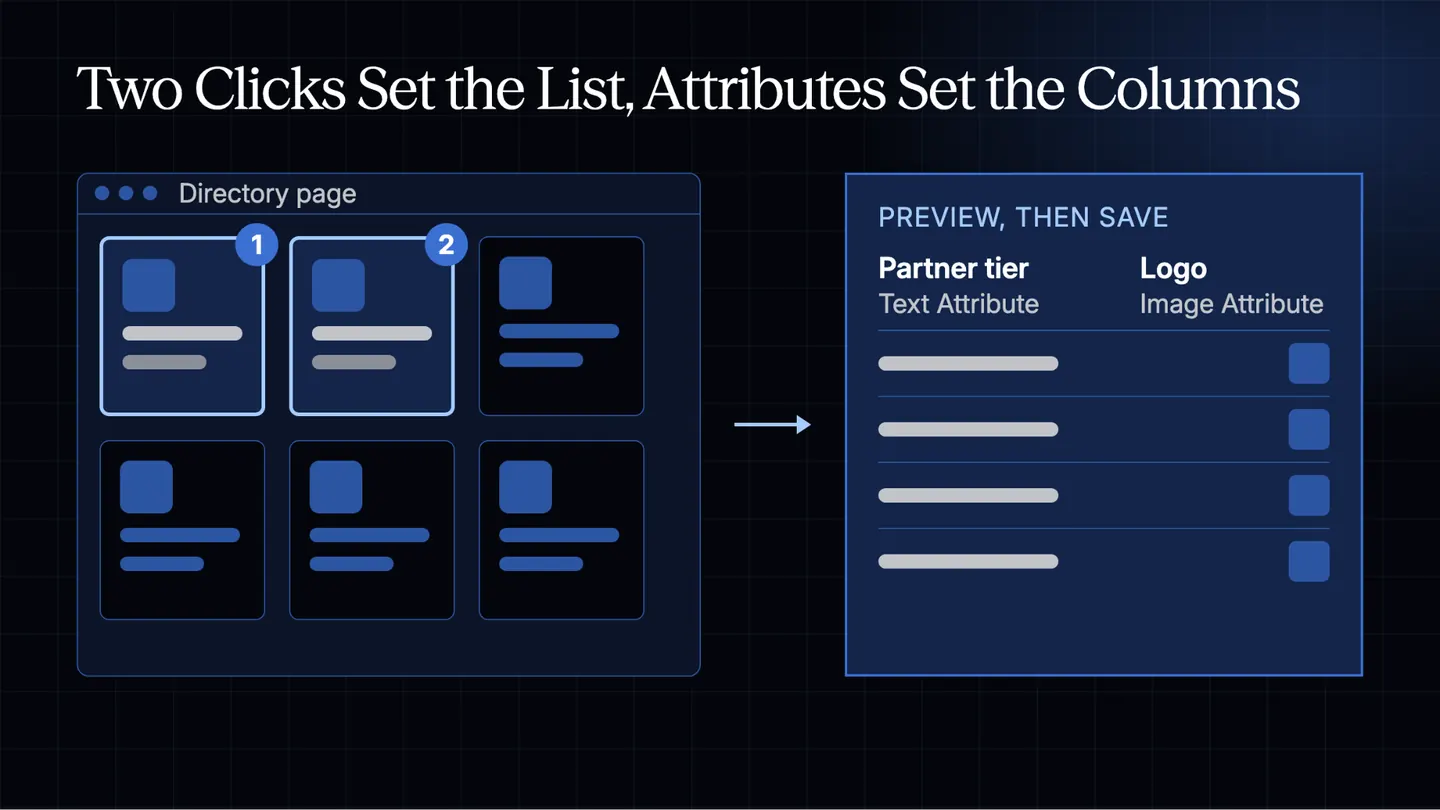
Two clicks on similar cards set the list, and each attribute adds a column.
The steps that follow use the partner directory’s first page.
- Open Clay for Chrome on the directory page.
- Click Select Data to Add from Page.
- Choose Select a List, then click two partner cards. Clay’s course says two clicks are enough for the list selector to appear.
- Add an attribute for each field. Use Text Attribute for text, such as the partner tier on each card, and Image Attribute for images, such as logos.
- Repeat the attribute step for every field you want to keep.
- Check the preview, which Clay’s course describes as “a neat, tabular format.”
- Name the recipe after its source, such as “Clay partner directory,” and save it.
With the recipe saved, Clay’s course says adding the data is “just a click away.” A new tab opens “presenting you with a ready-made table.” The store listing describes the same path as mapping your own list and adding it “as new leads in Clay.”
Clay also warns that “pages with less structured lists” may “require a bit more finesse.” Cards with uneven layouts are one example. Click two cards that look alike, and check the preview for blank cells before you save.
Some lists don’t need a recipe at all. For your own webinars and events, our attendee capture play pulls the registrant list from Luma or Zoom after each event and routes it into Clay.
How to Build a Single-Page Recipe With URL Matching
A single-page recipe captures the same fields from each page you open that shares a layout. Clay’s doc gives “profiles or product pages” as examples. The store listing’s version of the promise is that you can “pull important attributes from any website into Clay using just a URL.”
Map the Fields on One Profile
Open one partner profile from the directory. Profiles sit at addresses shaped like clay.com/en/experts/partner/ followed by the partner’s name. Choose Select Data to Add from Page, then Select a Single Attribute.
Map each field you want, one at a time. Clay’s example set is “name, website, professional social profile, Twitter, or Crunchbase.” On a partner profile, the labeled fields include Expertise, ICPs, Industry, Language, Pricing and Minimum Engagement. Fields like ICPs and Industry are the kind of inputs a lead scoring model ranks rows on.
Set URL Matching So the Recipe Fits Every Profile
URL Matching tells the recipe which pages it applies to. Clay’s instruction is to “Replace specific URL components with variables (e.g., :company_name).” For the directory, that means swapping the partner’s name for a variable: clay.com/en/experts/partner/:partner_name.
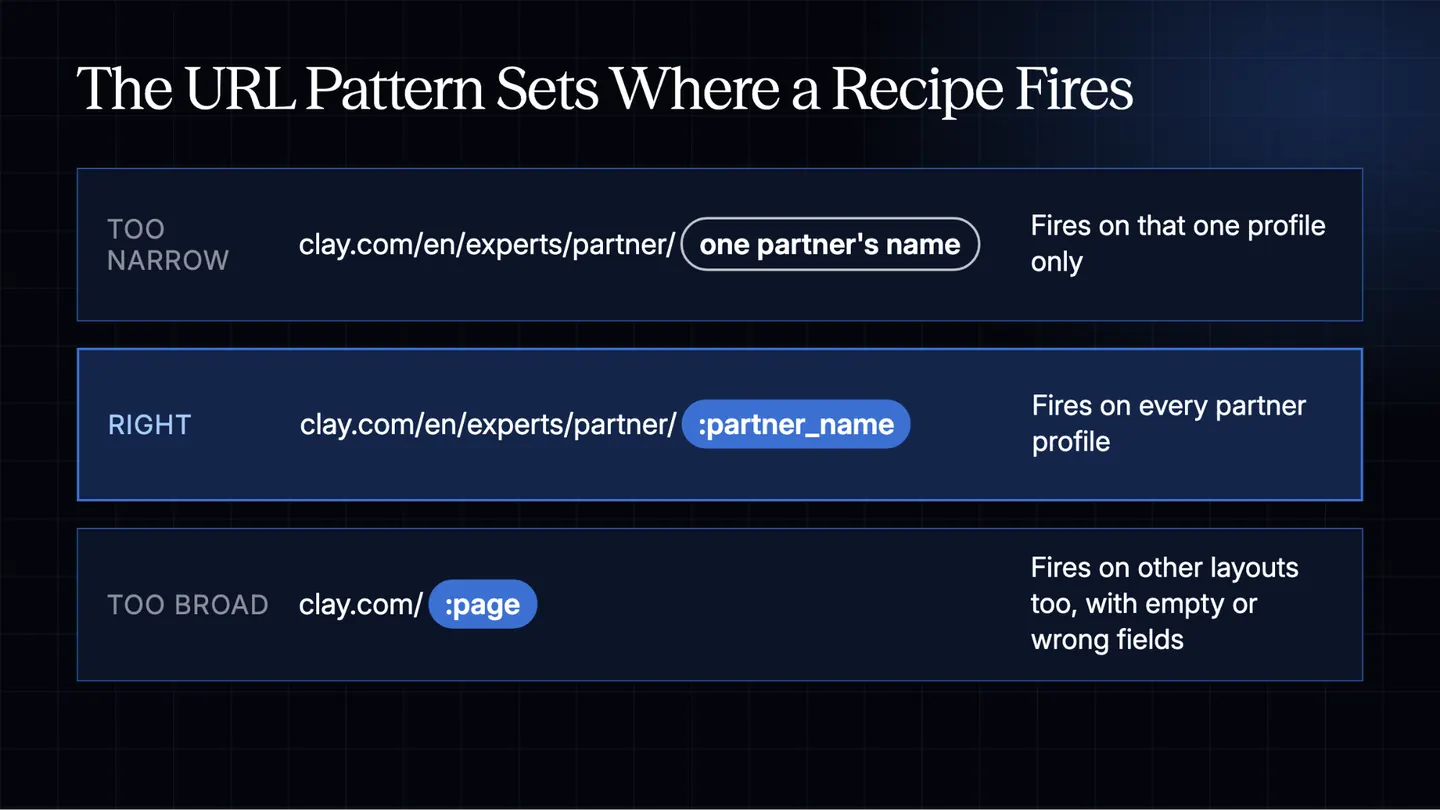
A variable in the right part of the URL lets one recipe fit every profile.
Get the pattern wrong in either direction and the recipe misbehaves. Leave one partner’s full address in place, and the recipe only fires on that page. Make it too broad, such as clay.com/:page, and it fires on pages with a different layout, which returns empty or wrong fields.
Name, Save and Test It
Name and save the recipe, then open two or three other profiles to test it. Each should fill every mapped field. A profile that comes back blank points to a different layout or a URL that doesn’t match the pattern.
How to Save Whole Pages With Clip to Clay
Clip to Clay needs one setup step inside Clay before it shows any table. Clay’s doc spells it out: “Only tables added this way will appear in the extension.”
- Install Clip to Clay from its Chrome Web Store listing.
- In Clay, open the table you want to fill, click the table name and select Show in Chrome Extension.
- Visit the webpage you want to save and open Clip to Clay.
- Select the destination table.
- Click Add to Table to save the page.
If the table doesn’t appear, Clay’s doc lists two checks. Make sure “You’re in the correct workspace” and that “The table has been enabled for the extension.”
Two more features help once you clip often. History lists your saved links and their destination tables, with a Go to Table button that opens the saved page in your workspace. In the table itself, click the table name, then Configure Chrome Extension Fields to choose which fields your clipping history shows.
Whole pages are raw material, not leads. Working from its experts directory, Clay’s course suggests pointing Claygent at the captured rows to “look up these agency names, analyze costs, or dig into the descriptions.” It names “competitor pages, case studies, or even conference attendee lists” as other places the same approach works.
What to Do With the Rows Once They’re in Clay
Once the rows land in a Clay table, the work runs in three steps. You enrich each row with the data the page didn’t show, qualify it against your criteria and send the rows that pass to a sequencer or CRM. Clay data enrichment adds those missing fields through provider columns or a multi-provider waterfall.
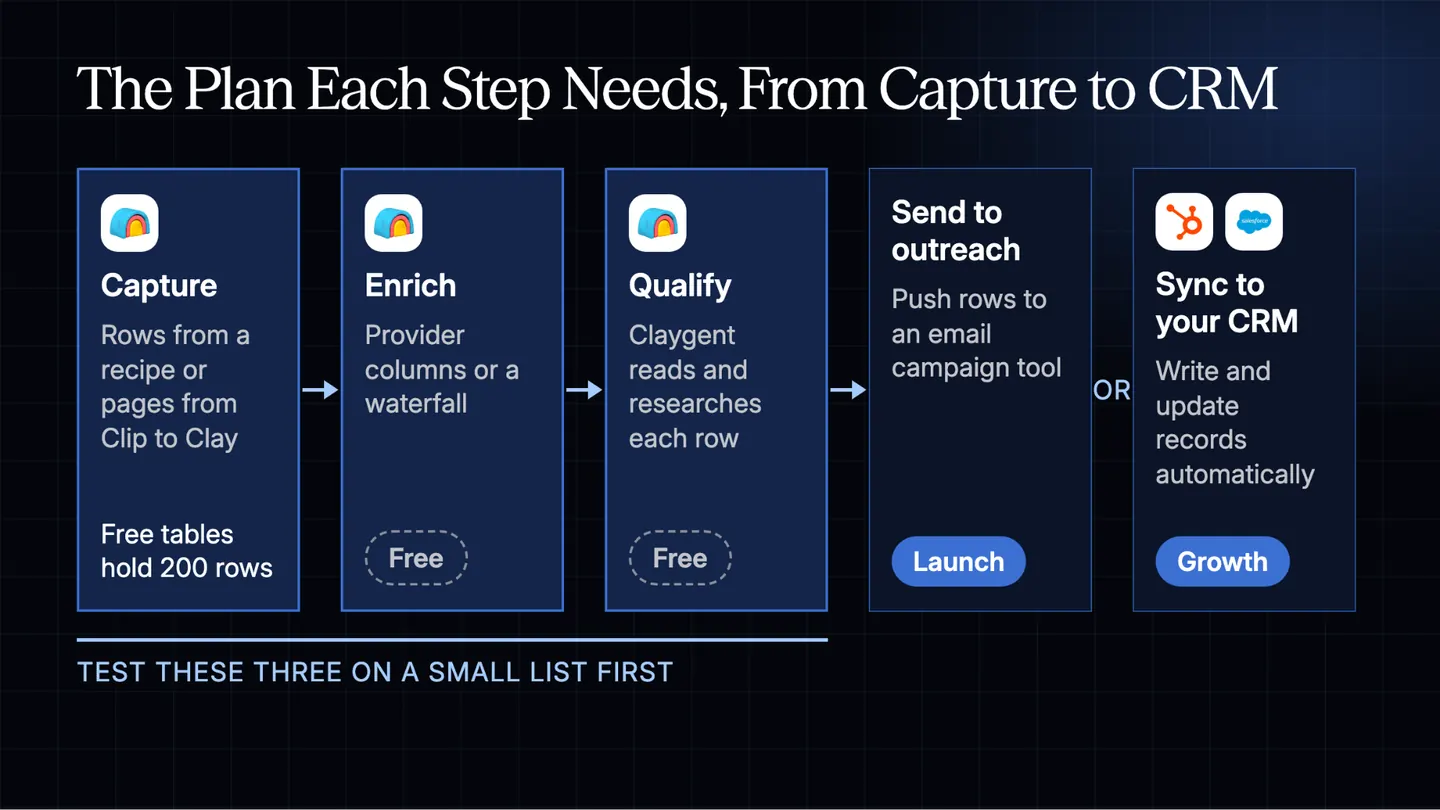
Enrichment and qualification run on Free, outreach starts on Launch and CRM sync on Growth.
Here’s each step with the first plan Clay’s pricing page lists it under, from the capture itself to a CRM sync.
| Step | What you do in Clay | First plan listed |
|---|---|---|
| Capture | Add rows from a recipe, or pages from Clip to Clay | None listed; Free tables hold up to 200 rows, Launch tables up to 50,000 |
| Enrich | Add provider columns or a multi-provider waterfall | Free (“Run multi-provider waterfalls”) |
| Qualify | Have Claygent read and research each row | Free (“Enrich with Claygent”) |
| Send to outreach | Push rows to an email campaign tool | Launch (“email campaign integrations”) |
| Sync to your CRM | Write and update records automatically | Growth (“CRM auto-sync and enrichment”) |
Enrichment and qualification both run on Free, and a Free table holds up to 200 rows. That’s room to try both on a small list before you pay for a plan.
How Much the Clay Extension Workflow Costs
200 rows per table is the Free plan’s ceiling, and that number decides how far a first capture can go. A directory with 196 entries fits. A list over 200 rows won’t, so plan the capture around the plan you’re on.
Clay’s pricing page doesn’t list either extension. What it does price is the plan and what you run on the rows. On November 20, 2026, Launch started at $185 a month on monthly billing and $167 a month on annual billing, with up to 50,000 rows per table. Growth started at $495 a month on monthly billing and $446 a month on annual billing.
Enrichment and AI columns spend Data Credits and Actions, and Clay pricing breaks down how those add up. Free’s monthly allowance is 100 Data Credits and 500 Actions, which caps enrichment separately from the 200-row table limit.
A lookup that comes back empty costs no Data Credits or Actions, per Clay’s pricing FAQ. Test every paid column on a handful of rows first, because a captured list can carry rows you’d never send to.
Turn a One-Off Capture Into a Table Your Team Keeps
The rows show the page as it read when you clicked, and directories, speaker pages and vendor lists change without telling you. Our Clay partner page names the problem “Tables nobody maintains”: one gets built for a single campaign and goes stale once nobody owns it.
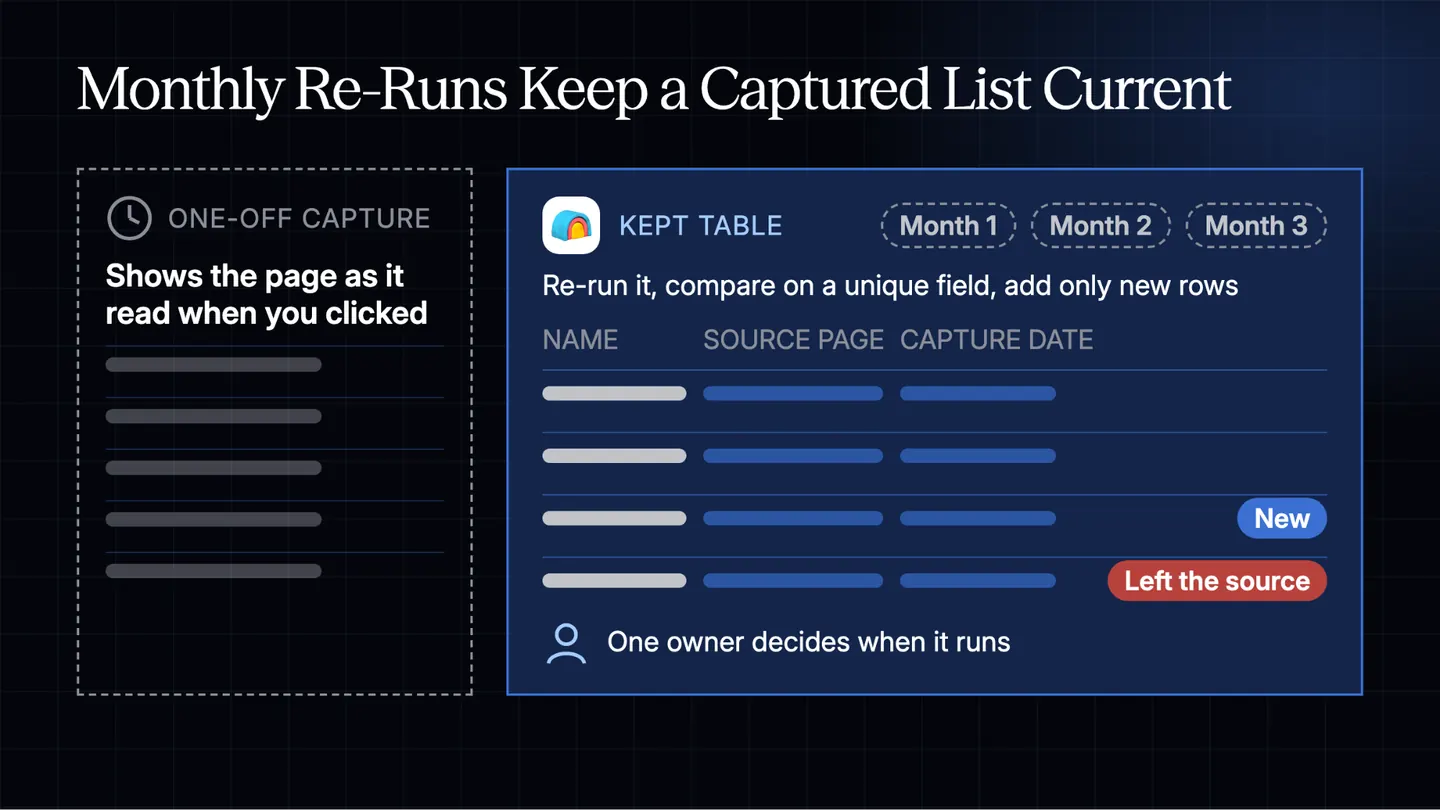
Each re-run adds the new rows and shows the ones that left the source.
Three habits keep a captured list useful. Re-run the saved recipe on a fixed cadence, such as monthly, and send each run to a separate table or a CSV file. Add only its new rows to the kept table, because appending a full re-capture doubles the list. On Free, a second 196-row capture in the same table would also go over the 200-row limit.
To find the new rows, compare the run with the kept table on a field that’s unique to each entry and rarely changes. On a company list that can be the website, and on a list of people, each person’s profile URL. The same match shows the rows that have left the source. To find the ones that changed, compare the other fields on each matched row, then update or retire rows before they reach outreach.
Add columns for the source page and the capture date, so anyone can rebuild the list. And give the table one owner, who decides when the recipe runs and which rows go on to outreach.
Frontal’s list building page describes the same habit: each list is documented “so your team can rebuild or extend it.”
Clay for Chrome vs a General Data Scraper Chrome Extension
Choose by where the rows go next. A general scraper fits a one-time CSV that nobody will enrich. Clay for Chrome fits a list that’s headed for outreach. Its captures can land straight in a Clay table, so the import step disappears. If you’d rather buy enriched records than capture them, lead enrichment services sell them with the contact fields already filled in.
On November 20, 2026, the top search result for data scraper Chrome extension was Instant Data Scraper’s store listing. The listing says it “extracts data from web pages and exports it as Excel or CSV files.”
Instant Data Scraper “uses AI to predict which data is most relevant,” supports pagination and states that “the scraped data does not leave your browser.” It also calls the extension “completely FREE.” For a one-time export, pagination and in-browser processing are real advantages.
Clay for Chrome does the capture step too. Its recipes are saved and reused, and URL Matching applies one recipe to every page with the same layout. Once the rows are in a Clay table, enrichment, qualification and CRM syncs run on them there. If you’d rather read web pages from inside a Clay table than through the browser, Clay has separate in-table tools for that job.
Frontier is the third option, and Clay describes it as a partner, not its own extension. Clay’s rep-prospecting page says Frontier “lets reps enrich with Clay and sync prospects to your CRM anywhere on the web.” It suits reps working one account at a time, not list capture.
Capture Responsibly: Site Terms, Personal Data and LinkedIn
Publicly visible data isn’t free of rules. A 2023 joint statement on data scraping from 12 data protection authorities says so plainly. “Personal information that is publicly accessible is still subject to data protection and privacy laws in most jurisdictions,” it reads. Those who scrape it “are therefore responsible for ensuring that they comply.”
In practice, read the site’s terms before you build a recipe on it. Capture only the fields your outbound list needs, and skip personal fields you won’t use. Keep the source and capture date with each row, so you can tell anyone who asks where their data came from. Finding work email addresses for the people you capture is a separate step in Clay, under the same data protection rules.
On LinkedIn, Clay’s two extension docs never show either extension running on its pages. A professional profile appears only as a field you might capture from another site. Read LinkedIn’s own terms before you capture anything there.
Why Recipes Break and How to Fix Them
When a recipe or a capture stops working, check these causes before you rebuild anything:
- If the page layout changed, remap the fields that now come back blank and re-save the recipe.
- If the URL pattern holds one full address, it matches that page only, so replace the changing part with a variable.
- If the pattern is too broad, keep the fixed part of the path in it, so it skips pages with a different layout.
- If autodetection missed the list, build a list recipe and click two items that look alike.
- If the table stopped at 200 rows, you’ve hit the Free plan’s per-table limit, which Launch raises to 50,000.
- If Clip to Clay doesn’t show your table, check the workspace, then select Show in Chrome Extension on that table.
Once a recipe holds steady, the manual work left comes after the capture: assigning each new row to a rep and logging it in the CRM. That’s the work sales workflow automation removes.
Get a Lead List That Stays Current
A Clay Chrome extension capture replaces the copying. The value comes later, when the rows are enriched, qualified and kept current for the people who sell from them.
That’s the part Frontal builds as GTM engineering for teams past product-market fit with a real sales team. On data enrichment work, new records get enriched on arrival, the setup is written down and your team is trained to run it. Most clients start with one service, which we scope and price with you on a call.
Frequently Asked Questions
Is the Clay Chrome extension free?
Clay’s pricing page doesn’t mention either extension, so it lists no separate extension price. The costs it does list are for the rows in Clay. The Free plan runs up to 200 rows per table and “Comes with 100 Data Credits and 500 Actions/mo.” On November 20, 2026, paid plans started with Launch, at $185 a month.
Does the Clay extension work on LinkedIn?
Clay’s documentation doesn’t show either extension running on LinkedIn pages. The docs list a professional profile link only as a field to pull from other sites, such as a company’s team page. Read LinkedIn’s own terms before capturing anything there.
What’s the difference between Clay for Chrome and Clip to Clay?
Clay for Chrome picks out fields, such as names, locations and websites, from a list or a single page. Clip to Clay saves the whole webpage into a Clay table. Use the first for lead lists and the second for pages you’ll come back to.
Can I use Clay for Chrome without a table?
Yes. Clay’s doc says you can download a capture as a CSV file or copy it to the clipboard instead. The trade-off is a second import later if you want to enrich or qualify the rows in Clay.
Is Clay for Chrome a data scraper Chrome extension?
Clay for Chrome does the same capture step, from lists and single pages, but it’s built to feed Clay. Its saved recipes and URL Matching reuse one mapping across similar pages. A general scraping extension, such as Instant Data Scraper, exports to Excel or CSV and stops there.
How do I keep a captured list current?
Run the saved recipe again on a fixed cadence, into a new table each time. Match that run to the kept table on a field no two entries share, such as the website for companies or the profile URL for people. Append the new rows, update the changed ones and retire those that left the source. Add source-page and capture-date columns, and give the table one owner, so the recipe keeps running after the first campaign.
Can Frontal build these lists for my team?
Yes. Our team builds account and contact lists in your Clay workspace, verifies every email address and writes them into HubSpot or Salesforce. Most clients start with one service. There’s no rate card, so scope and pricing come out of a call. Whoever you hire, ask where the tables will live, because a Clay agency working from its own workspace can take the build with it when the contract ends.